The Studio
The three-column builder where your app is designed — the page outline, the live phone preview, and the settings panel.
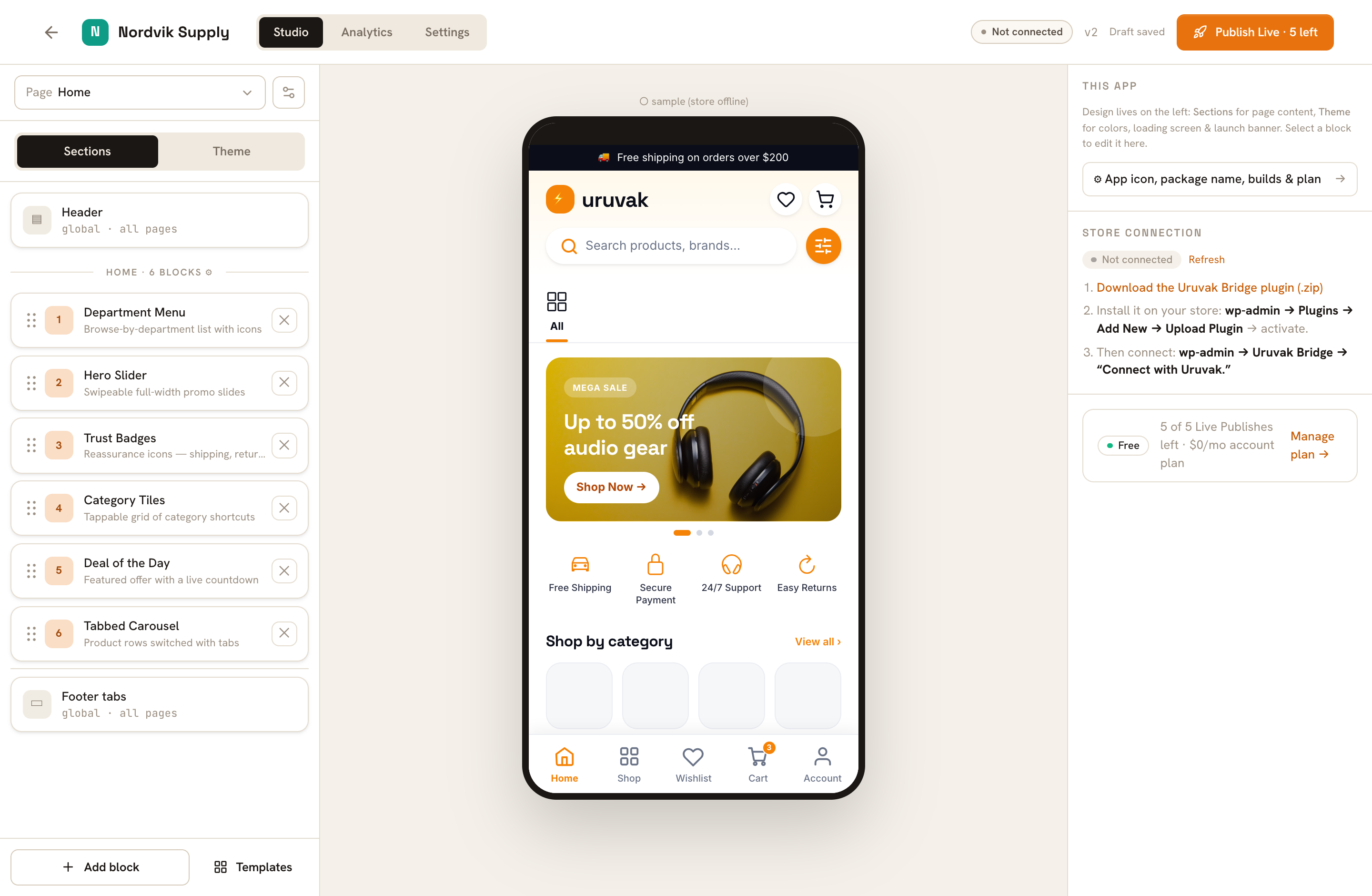
The Studio is where your app gets its shape. Open the Uruvak dashboard, click your store's tile, and you land on it. It is three columns: the page outline on the left, a live phone preview in the middle, and the settings for whatever you clicked on the right. Nothing here reaches your shoppers until you publish — everything you do in the Studio is a draft.
What each column is for#
The left rail is the outline. It lists your page from top to bottom, in the order shoppers will scroll it. A Header card is pinned at the top and a Footer tabs card is pinned at the bottom; both read global · all pages, because they are not part of any one page. Between them sits a thin divider that reads something like home · 3 blocks with a gear on it — that gear opens this page's own settings. Under the outline are two buttons, Add block and Templates.
The middle column is your app. It redraws as you type. Above the phone, a small line tells you where the contents came from: ● live store data means your connected store answered and you are looking at your real categories and products; ○ sample (store offline) means it did not answer and you are looking at stand-in data. If no line appears at all, the preview could not load anything — reload the page, and if it stays blank check your store connection.
The right rail is the settings panel. Click a block and it fills with that block's settings under the heading Block settings. Click the Header or Footer tabs card and it shows those instead. Click nothing and it falls back to a panel headed This app, with a link to ⚙ App icon, package name, builds & plan, your store connection, and your plan.
Across the top: the three tabs for this store — Studio, Analytics, Settings — then a Connected pill, a version number like v12, the autosave label, and Publish Live.
The four pages#
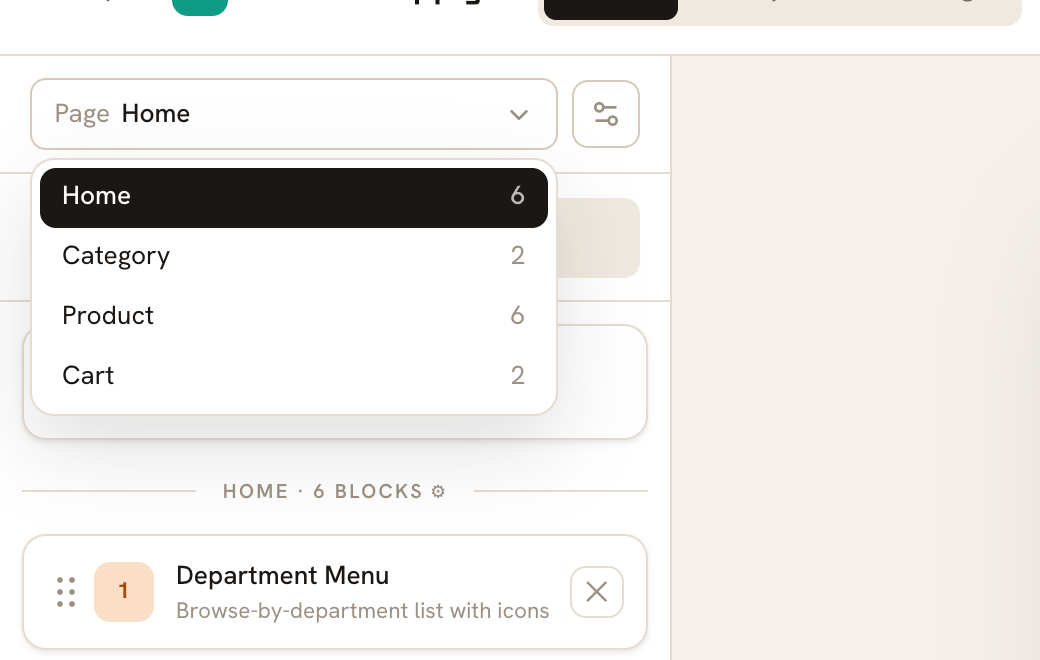
Your app has four designable pages, and each one keeps its own list of blocks. Pick between them from the Page dropdown at the top of the left rail; the number beside each name is how many blocks that page has.
| Page | What it is |
|---|---|
| Home | The screen the app opens on. It has the largest choice of blocks — 14 of them. |
| Category | One layout that every category uses. Five blocks are offered here, including the filter and sort bar and the vertical product list. |
| Product | One layout that every product uses. Design it once; every product in your catalog is shown with it. |
| Cart | The blocks that sit around the cart. The cart contents themselves are built into the app — what you add here is the reassurance and the upsells underneath. |
Switching pages clears whatever you had selected, so the right rail goes back to the This app panel. The palette is filtered per page: a block you used on Home may simply not be offered on Category. That is intentional, not a fault.
The header and the footer tabs are the exception — they are global, they appear on every page, and they have no drag handle and no delete button. To hide the header on one page only, open that page's gear and turn off Show header. Both are covered in Bottom tabs and trust badges.
Adding a block#
Click Add block
A panel opens above the button, headed
Blocks for the home page. Blocks are grouped — Navigation, Merchandising, Product Detail, Listing — and only the groups that have something for this page appear.Click the block you want
It is added to the bottom of the page and selected for you, so its settings are already open in the right rail. There is no way to drop a new block into the middle of the page; add it, then drag it up.
Replace the placeholder content
New blocks arrive full of stand-in material — grey placeholder images, a slide titled
New slide, an end date in the year 2030. Work through the right rail and replace all of it before you publish.
Two blocks change your settings the moment you open them: Department Menu fills itself with every top-level category, and Category Tiles selects every category. If you only want three of them, you will be unticking, not ticking. Every block and every setting is listed in Every block, and what it does.
Reordering and deleting#
Only the six-dot grip at the far left of a row is draggable — its tooltip reads Drag to reorder. Grab it, drag up or down, and an orange line shows where the block will land. Dragging the block's name does nothing, and there is no keyboard shortcut for it.
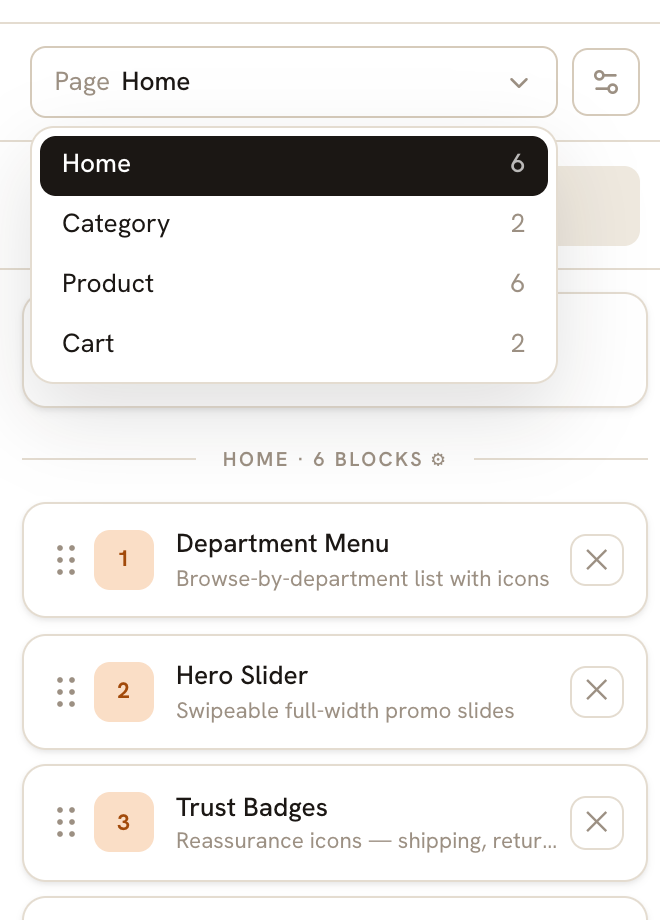
The ✕ at the right of a row deletes the block immediately. No confirmation appears and there is no undo — the only Undo in the Studio is the one offered after a publish. If you delete the wrong block, add it again and set it up again.
Your work saves itself#
There is no Save button in the Studio, and you should not go looking for one. About a second after you stop making changes, the label next to Publish Live reads Saving… and then Draft saved. That is the whole save mechanism.
If something goes wrong it reads Draft not saved — retrying on your next change. That usually means your connection dropped. Stay on the page, fix your internet, then make any small change — retype a title, toggle something and toggle it back — and the whole draft is sent again. Do not close the tab while it says that.
Saving is not publishing. A saved draft lives in your Uruvak account and nobody else can see it. Shoppers get your design only when you press Publish Live, which is covered on its own page: Publish live. Just opening the Studio and looking around saves nothing and changes nothing.
What to do if an edit won't stick#
Every change you make is checked before it is kept, and a change that does not pass is thrown away without a message. The field simply snaps back to what it was. It looks like a bug; it is the check.
You will meet it in three places:
- Pasting an image address. Typing an address into Image URL one character at a time never works, because "h", "ht", "htt" are not addresses. Copy the whole
https://…address and paste it in one go. - Numbers with a minimum. Interval (ms) will not go below 2000. Clearing the box and typing
6is rejected and the old number comes back. Type the full number instead. - Emptying a label. Clearing a trust badge's Title or a footer tab's Label does not leave you an empty one to fill in — it removes that badge or that tab. Type the replacement over the old text instead of clearing it first.
Two more limits worth knowing before they surprise you: the last slide of a Hero Slider cannot be deleted (the block keeps its old slide), and the last trust badge cannot be removed either. Delete the whole block if you want it gone.
Where Publish Live sits#
Top right, next to the autosave label. On a brand-new store it is greyed out with a link beside it reading Take your first release to unlock →, because there is no app out there yet to update — see Take a release. On the free plan the button counts down, for example Publish Live · 3 left, and that count is five for the lifetime of your account. Plans and limits has the details.
The fastest way to fill an empty app is not to add fourteen blocks by hand — it is to start from a ready-made design and edit it. That is next: Start from a template.