App name, icon and package name
Set the name under your app's icon, upload a 1024×1024 icon, and choose the package name that Google Play ties to your app forever.
These three things are your app's identity. They are baked into the app file itself, so none of them travel with Publish Live. They land on customers' phones only when you take a new release and they install it. Two of them you can change whenever you like. The third you get one shot at.
All three live in one card. Open your store from the dashboard, click the Settings tab at the top, and stay on General — Settings › General › App identity is the first card on the page.
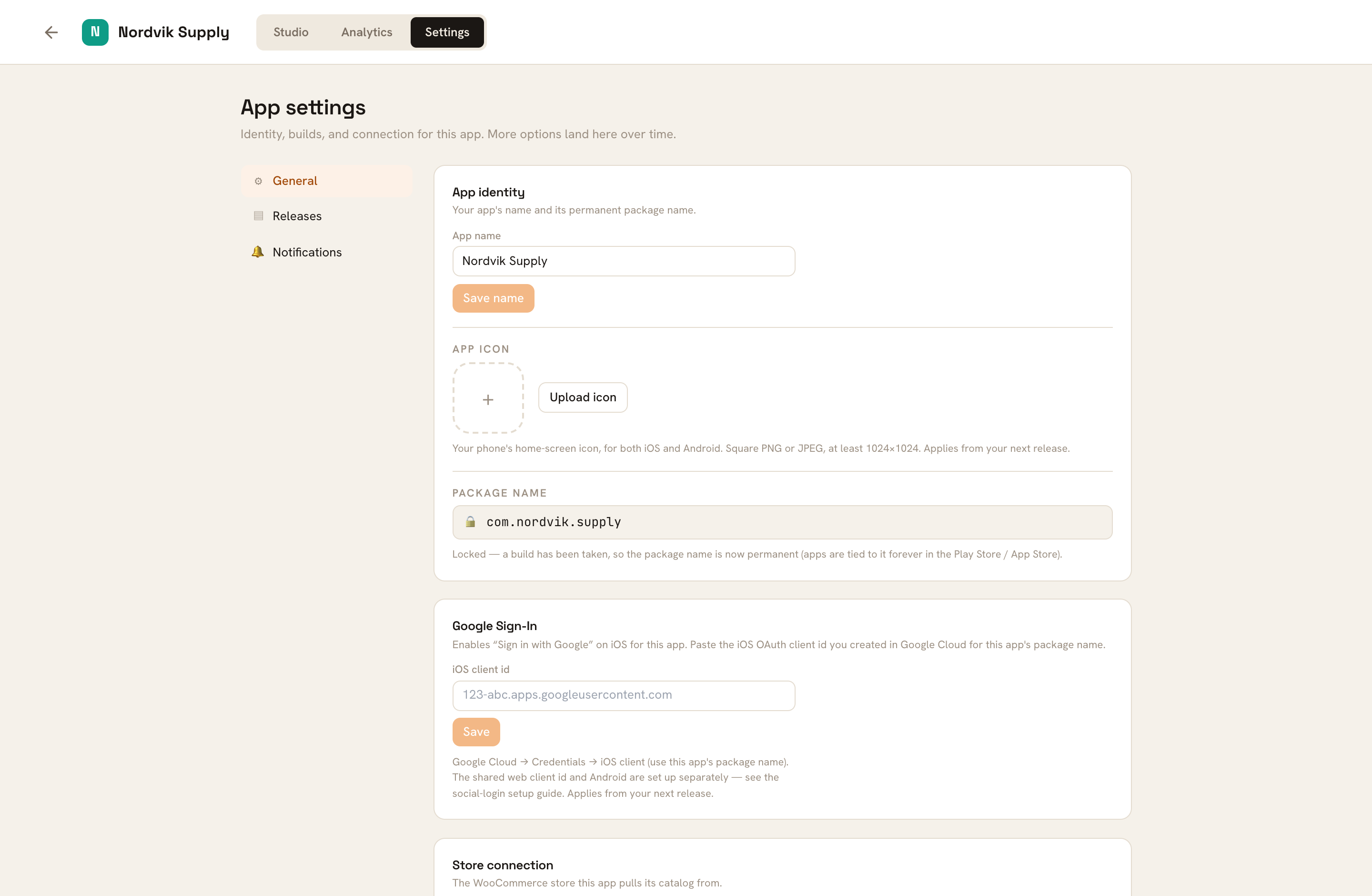
The app name#
This is the text shoppers see under your icon on their home screen, and the name your app shows on its own loading screen while it starts.
Type the name in App name
Keep it to 30 characters or fewer. Short wins here — a phone home screen truncates anything long — so "Nordvik Supply" reads better than "Nordvik Supply — Outdoor Gear".
Press Save name
The button stays greyed out until the text differs from what is already saved. When it lands you get a green ✓ Saved beside it.
You can also edit the same field in the Studio, under Theme › Branding. That one saves itself about a second after you stop typing; the one in Settings waits for the button. Both write the same name, so use whichever you happen to have open.
The name you set here is the name built into the app. It is not your Google Play listing title — you type that yourself in the Play Console when you upload the file, and the two are allowed to differ. See Get your app onto Google Play.
The app icon#
Click the dashed + square, or Upload icon
A file picker opens. It accepts PNG and JPEG only.
Pick a square image of at least 1024×1024
Your browser measures the file before anything is uploaded, so a wrong file is rejected in a fraction of a second, with the reason:
- "Use a PNG or JPEG image." — WebP, SVG, HEIC and anything else are refused. Re-export as PNG.
- "The icon must be square — this image is 1200×800." — crop it to a perfect square first.
- "Needs at least 1024×1024 (App Store size) — this image is 512×512." — 1024×1024 is the floor, not a suggestion. Bigger is fine.
There is also an 8 MB ceiling on the file itself, which a 1024×1024 PNG will not come close to.
Check the preview
The uploaded icon replaces the dashed square, shown rounded the way a phone will show it. The button relabels to Replace icon and a small Remove link appears under it.
Design it flat and simple: it will be seen at about the size of a fingernail. Give it a solid background rather than a transparent one — Uruvak uses the single square file you upload everywhere, and does not generate a separate rounded Android version from it.
The package name#
The package name is your app's permanent address in Google Play. Two apps can share a name and an icon; no two apps on earth can share a package name.
The first part is fixed for every Uruvak app — it reads com.uruvak. in a grey chip — and you choose the last segment.
Type the last segment
Letters and numbers only, 2 to 50 characters, starting with a letter. Anything else is stripped out as you type: "My Store!" becomes
mystore, and capitals are lowercased.Wait for ✓ Available
About half a second after you stop typing, Uruvak checks it. You will see Checking…, then one of:
- ✓ Available — yours to take.
- ✕ Already used by another app — someone got there first; pick another.
- ✕ 2–50 letters/numbers, starting with a letter — the suffix is too short, empty, or starts with a digit.
Save package name stays disabled until the check comes back available, so clicking while it still says "Checking…" does nothing.
Press Save package name
The full name is shown under the field as you type —
com.uruvak.nordvik— so you can read it once more before you commit.
A sensible one is your store's name with the punctuation taken out: nordvik, nordviksupply, cedarandco. Avoid a year, a season, a campaign, or the words test, demo, new and v2. You will be stuck with this string for the life of the app, and customers never see it — so pick the boring, permanent one.
Once the app is on Google Play this is doubly true: Google identifies your listing by the package name. A different one is a different app, with a separate listing, zero installs, zero reviews, and no upgrade path for anyone who already has the old one on their phone.
One more reason to settle it early: push notifications are set up against this exact string. If you change the package name after you have uploaded your Firebase files, the Notifications section warns you that builds will skip push until you upload a matching file. See Push notifications.
Which of the three needs a new release#
All three. That is the point of this page.
| What you change | How it reaches shoppers |
|---|---|
| App name | A new release, installed from Google Play |
| App icon | A new release, installed from Google Play |
| Package name | Can only be set before your first release |
| Colors, theme, blocks, products, bottom tabs, trust badges | Publish Live — live in seconds |
After you change the name or the icon, an amber New release required pill shows up in the Studio's top bar. It is fetched when the page loads, so reload the Studio if you do not see it, and note that it never appears on an app that has not had a release yet. Either way the release button in Settings › Releases is what you want next — see Take a release.
What to do if it goes wrong#
"Save name" does nothing and no tick appears. The save failed silently. Check the name is 30 characters or fewer, reload the page, and try once more.
The icon upload shows a red line you do not understand. Anything other than the three size and format messages above came back from our servers, and it can be as unhelpful as "Internal server error". Wait a minute and try again; if it keeps failing, send us the file.
"✕ Already used by another app". That exact package name is taken. Add your city, your category, or drop a vowel — nordvikgear, nordvikoslo.
The package name shows a padlock and you have not released yet. A release exists somewhere — check Settings › Releases for a queued or failed-looking row. A release that has failed does not lock it; anything else does.
You locked the wrong package name and the app is not on Google Play yet. There is no unlock. If the app has never been published, contact us before you release again — starting over means a new app in Uruvak, which also means rebuilding its design.
With your identity settled, the next thing worth knowing is exactly what the finished app looks like in a customer's hands: What your shoppers see.