Start from a template
Five ready-made app designs and a set of per-page layouts — what each one installs, and exactly what it overwrites.
There are two kinds of template. A full app template designs every page, the header, the bottom tabs and all the colors in one click. A single-page template fills only the page you are looking at. Both replace what is already there — they never merge — so the order to do things in is: template first, then your own edits.
The gallery opens by itself the first time you open a store that has no blocks on any page. After that you reach it with the Templates button under the page outline, or with ⊞ Start from a template on any page that is still empty.
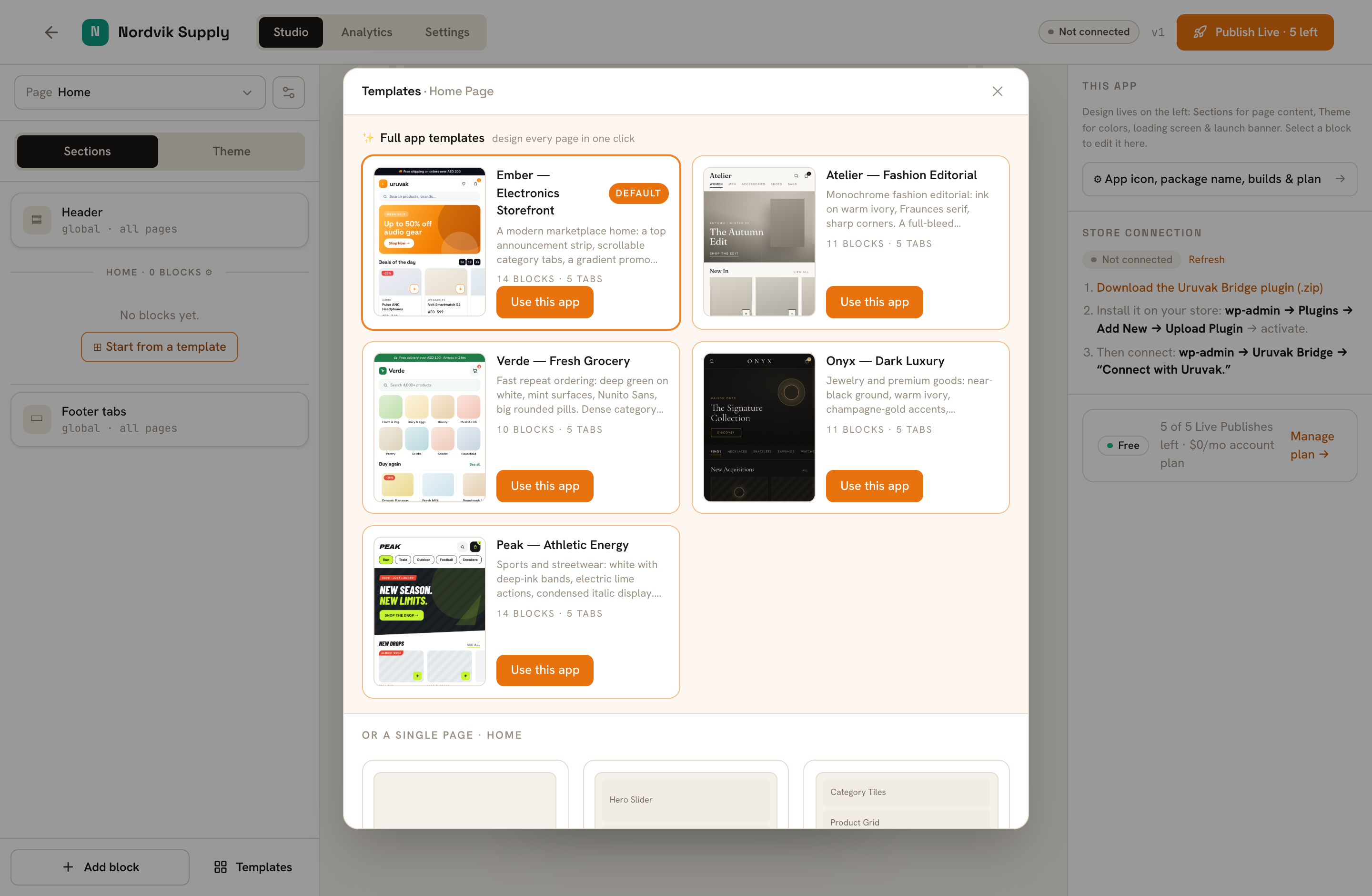
The five designs#
Each one is a whole visual language — colors, fonts, corner rounding and a full set of blocks on every page. Ember carries a Default pill because it is the one a brand-new store is offered first. Onyx is the dark one.
| Design | Made for | The card says |
|---|---|---|
| Ember — Electronics Storefront | Everyday retail and electronics. Amber accent, announcement strip, deals with a countdown. | 14 blocks · 5 tabs |
| Atelier — Fashion Editorial | Fashion. Ink on warm ivory, a serif face, sharp corners, a lookbook hero. | 11 blocks · 5 tabs |
| Verde — Fresh Grocery | Grocery and repeat orders. Deep green, mint surfaces, big rounded pills, dense category tiles. | 10 blocks · 5 tabs |
| Onyx — Dark Luxury | Jewelry and premium goods. Near-black, champagne gold, hairline rules, very sparse. | 11 blocks · 5 tabs |
| Peak — Athletic Energy | Sportswear and streetwear. White with deep-ink bands, electric lime buttons, a loud drop hero. | 14 blocks · 5 tabs |
Every design is available on every plan. Nothing in the gallery is locked behind an upgrade.
What "Use this app" actually replaces#
This is the part worth reading twice. Applying a full app template overwrites:
- All four pages — Home, Category, Product and Cart. Every block you had on them is gone.
- The header — its title, logo, announcement strip and the search, wishlist and cart icons.
- The bottom tabs — all of them, replaced with the template's five.
- Every color — and the preset that sets your fonts and corner rounding with them.
It keeps your store connection, your app name, your app icon and your package name. Your published app also keeps running exactly as it is until you publish again.
One more thing a full app template changes quietly: all five turn the global header off everywhere except Home. Your Category, Product and Cart screens then use the app's own header with a back arrow and the screen name instead. You can turn the global header back on for a page with that page's gear in the left rail.
Templates for one page#
Below the full-app section, under a heading like Or a single page · home, are the templates for the page you are currently on:
| Page | Templates |
|---|---|
| Home | Featured Store, Shop Grid, Mega Merchandised |
| Category | Standard Grid, List View |
| Product | Full Detail, Simple |
| Cart | With upsells |
The stack of gray bars on each card is the list of blocks that template installs, in the order they will appear — that is your preview. Press Use template and, if the page already has blocks, your browser asks Replace the current page with this template?. It replaces only that one page, and leaves your colors, header and tabs alone.
The first card is always Blank page. Use blank empties the current page so you can build it yourself from Add block.
Straight after you apply#
The template is a draft like everything else in the Studio — it autosaves, and no shopper sees it until you press Publish Live.
Before you get that far, go through it block by block in the right rail:
Replace the photographs
Templates ship with stock photography — models, laptops, groceries that are not yours. Every hero slide and promo banner needs your own picture. Those two have a small image button beside the Image URL box that opens your store’s WordPress media library; an Image Banner block takes a pasted web address only.
Point the blocks at your categories
Category tiles, showcases and carousels arrive with a placeholder selection. Open each one and choose your real categories from the picker.
Fix the dates and the copy
Countdowns and deal blocks arrive with a date far in the future, and headline text like
New slide. Both need real values.Check all four pages
Use the Page dropdown and look at Category, Product and Cart too — the template filled those in as well, and the Cart page may now be empty.
If the design is close but the colors are not yours, you do not have to pick a different template: every color the template set can be changed one by one. That is Colors, fonts and theme. If you would rather rebuild the page yourself, Every block, and what it does goes through them one at a time and says what each one needs from you.