Take a release
Build the installable Android app from Settings › Releases — what a release is for, the ten-minute wait, and how to get the APK file.
Uruvak changes your app in two very different ways. Almost everything you do in the Studio — colors, blocks, screens, products, bottom tabs — goes out with Publish Live and reaches shoppers in seconds. A release is the other kind. Uruvak compiles a brand-new Android app file, which takes about ten minutes, and hands it to you to install or upload yourself. Your first release is also the switch that turns Live Publish on, so every store takes at least one.
What a release is for#
Five things are baked into the app file itself. Change one of them and the only way it reaches a phone is a new release, followed by the shopper updating the app.
| What you changed | How it reaches shoppers |
|---|---|
| App name | A new release |
| Package name | A new release — and you can only change it before your first one |
| App icon: added, replaced or removed | A new release |
The google-services.json file that switches push on | A new release |
| The Google Sign-In iOS client id | A new release |
| Everything else: theme, colors, fonts, blocks, screens, products, bottom tabs, trust badges, banners | Publish Live, live in seconds |
The product describes this as changing "your app's icon, name, or notification setup". That sentence is a little short: saving the Google Sign-In iOS client id in Settings › General also asks for a release, even though it has nothing to do with notifications. If the amber pill appears right after you saved that field, nothing is broken.
Before your first release#
Two things are worth getting right before you press the button, because the first release is not quite like the ones after it.
Your first release also freezes your current draft as the live version of your app. Whatever the Studio looks like at the moment you confirm is what shoppers get, and it does not cost you one of your Live Publishes. Finish the design you are happy with before you press the button. If that first build then fails, the freeze still stands and Live Publish stays locked — take another release.
Every release after the first behaves differently, and this catches people out: a release carries the last thing you published live, not your current draft. Only your app's identity — its name, icon and loading logo — is taken from the draft. So if you have unpublished work in the Studio, press Publish Live first, then take the release.
Take the release#
Open Settings › Releases
From your store's top bar, open the Settings tab, then pick Releases in the left sidebar. The web address ends in
section=builds, which is why a few places in the product still call this screen "Builds" — it is the same screen.Press Release Android app (APK)
Nothing starts yet. The button only opens a confirmation dialog, so you can read it before anything is queued.
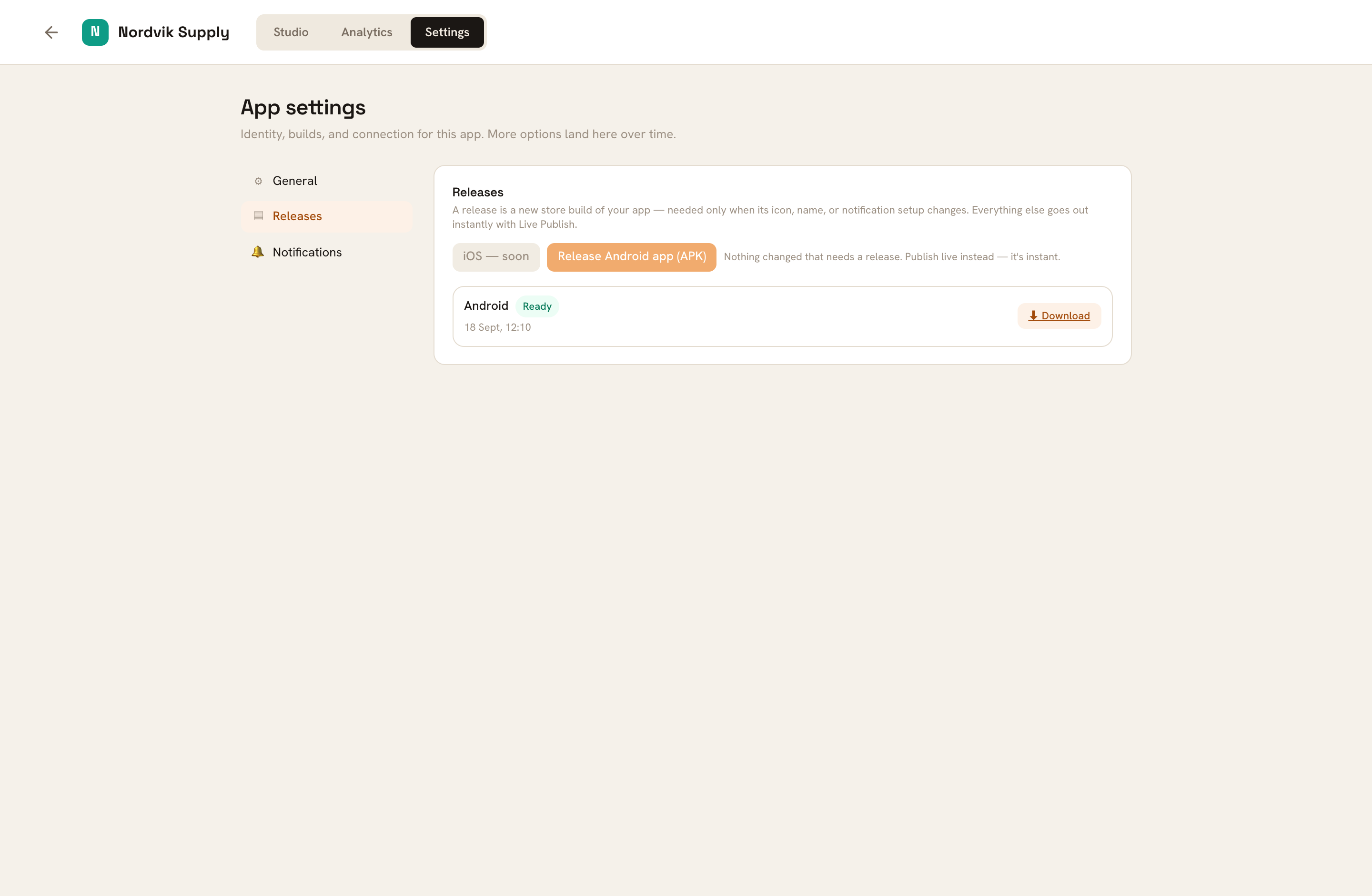
Settings › Releases. The amber line above the history appears when something baked into the app has changed since your last finished release. Read the dialog, then press Release app
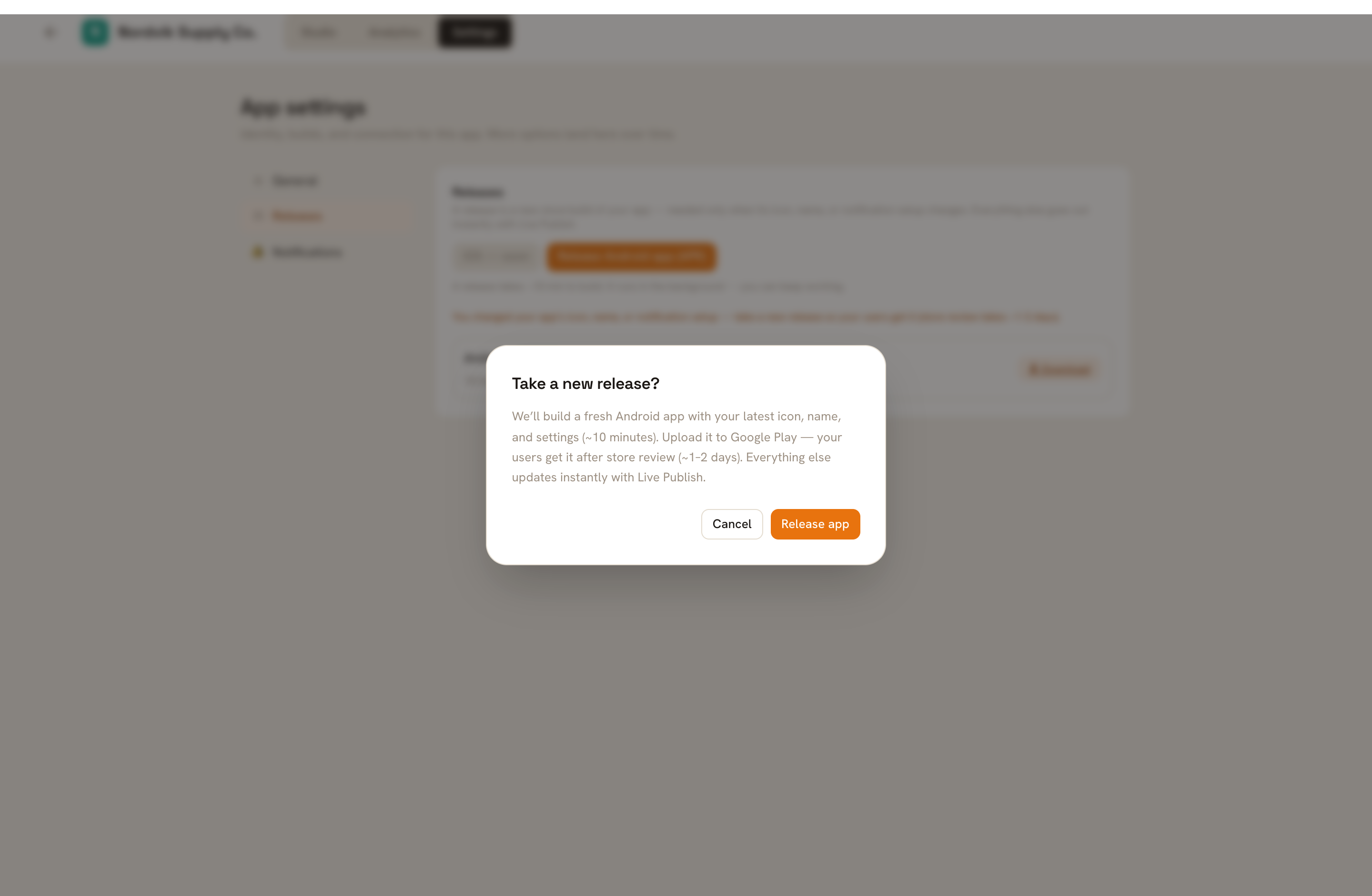
The dialog is honest about the timings: about ten minutes to build, and — if you take it to Google Play — one to two days of store review before shoppers see it. On the free plan, an amber line appears here before your last included release. It is the only warning you get, so read it.
The confirmation dialog. The amber line only appears on the free plan, once, before your last included release. The button reads Starting… for a second while the job is queued.
Wait about ten minutes
A row appears at the top of the history list straight away and moves through three states: Queued, Building, then Ready. The list refreshes itself every five seconds while a release is running, and the big button reads Building… the whole time.
You can close the tab, keep editing in the Studio, or go and do something else — the build runs on Uruvak's servers, not in your browser. Nothing emails you when it is done, so come back and look.
Download the APK
When the row turns Ready, a ⬇ Download link appears on the right of it. It opens in a new tab and saves an
.apkfile. There is no password on that link, so treat it like a private file — do not post it anywhere public.Every release you have ever taken stays in this list with its own download link, so you can always go back to an earlier file.
Once one release reaches Ready, the greyed-out Publish Live button in the Studio comes to life and stays that way forever. From here, day-to-day changes are instant — see Publish live.
Why the release button is greyed out#
Nothing needs a release#
The line beside the button reads "Nothing changed that needs a release. Publish live instead — it's instant." Uruvak has compared your app's name, package name, icon, push file and Google Sign-In id against your last finished release and found them identical, so a release would produce the same app twice. Use Publish Live instead.
A release is already running#
The button reads Building… until the current one finishes or fails. One release per store at a time. If a request slips through anyway, the message is "A android build for this app is already queued. Wait for it to finish." — the odd grammar is ours, and the last word changes to "building" once a machine has picked it up.
You have used your free-plan releases#
free accounts get enough releases to launch and fix a few mistakes, counted across every store on the account. When they are gone the button still opens the dialog, and confirming it puts a red line under the buttons: "The free plan includes everything you need to launch — you've used your included releases. Upgrade to keep releasing." with an Upgrade link beside it. Failed releases are free and never counted. launch and agency have no release limit. See Plans and limits.
The store is over your plan's limit#
"This store is over your plan's limit (Free includes 1 store). Resubscribe or archive another store to edit it." Your account has more stores connected than your plan allows — archive one on the Billing page, or upgrade. Upgrading, downgrading and cancelling covers both.
The amber "New release required" pill#
Once you have taken a release, the Studio's top bar watches those five baked-in settings for you. Change one and an amber New release required pill appears next to the publish button, and the same sentence in amber appears on the Releases screen: "You changed your app's icon, name, or notification setup — take a new release so your users get it (store review takes ~1–2 days)."
The pill is a reminder, not a fault. Your live app keeps running exactly as it is; the new icon or name only lands on a phone once that person installs a newer build of the app.
When a release fails#
A failed row shows a red Failed pill and a ↻ Retry button. Uruvak does not show you why it failed — there is no log to open, and the reason stays on our side. There is usually nothing to fix at your end, so try once more before you do anything else.
Some things worth knowing before you spend an afternoon on it:
- ↻ Retry starts a brand-new release through the same dialog. It does not resume the failed one, and the failed row stays in the history.
- If your app's name, icon and push file are identical to your last Ready release, Retry is refused with "Nothing changed that needs a release. Publish live instead — it's instant." in red. There is nothing to fix on that screen — get in touch with Uruvak support with the date and time of the failed row.
- A release that sits on Queued for a long time is waiting for a free build machine. Nothing on screen explains this. If it has not moved in an hour, contact support.
- A release stuck on Building for more than about 30 minutes gives up on its own and turns Failed.
- If the history list looks stale or wrong, reload the page. When the Releases screen cannot reach Uruvak it quietly keeps showing the last thing it loaded rather than telling you.
Failed releases never cost you anything, on any plan.
You now have an .apk file. What you can actually do with it — test it on your own phone today, and what a Google Play listing really involves — is the next page: Get your app onto Google Play.