Connect your store to Uruvak
Link WordPress to your Uruvak account with the one-click handshake that starts in wp-admin and finishes back there a minute later.
Connecting always starts in WordPress and finishes in WordPress. You press one button in wp-admin, approve a card on app.uruvak.com, and land back on the plugin screen with a green notice. The whole thing takes under a minute, and once it is done your shop and your Uruvak account are joined for good.
Before you press the button#
- The Uruvak Bridge plugin must be installed and active.
- You must be signed in to wp-admin as an administrator, in the browser you are about to use.
- Do it in one sitting. Part of the handshake expires after five minutes.
If you do not have a Uruvak account yet, you do not need to make one first — you can create it in the middle of this flow. Create your Uruvak account covers what that asks for.
Link the store#
Press Connect with Uruvak in wp-admin
Open Uruvak Bridge in the WordPress menu and press the amber Connect with Uruvak →, either at the top right or inside the Connect this store card. WordPress sends you to app.uruvak.com.
Sign in, or create your account
If you are already signed in to Uruvak, you go straight past this. If not, you land on the sign-in page with your store details remembered, and you are returned to the approval card the moment you are in. Creating an account here is fine — you will be asked for a six-digit code emailed to you, and then sent straight back.
Approve the link
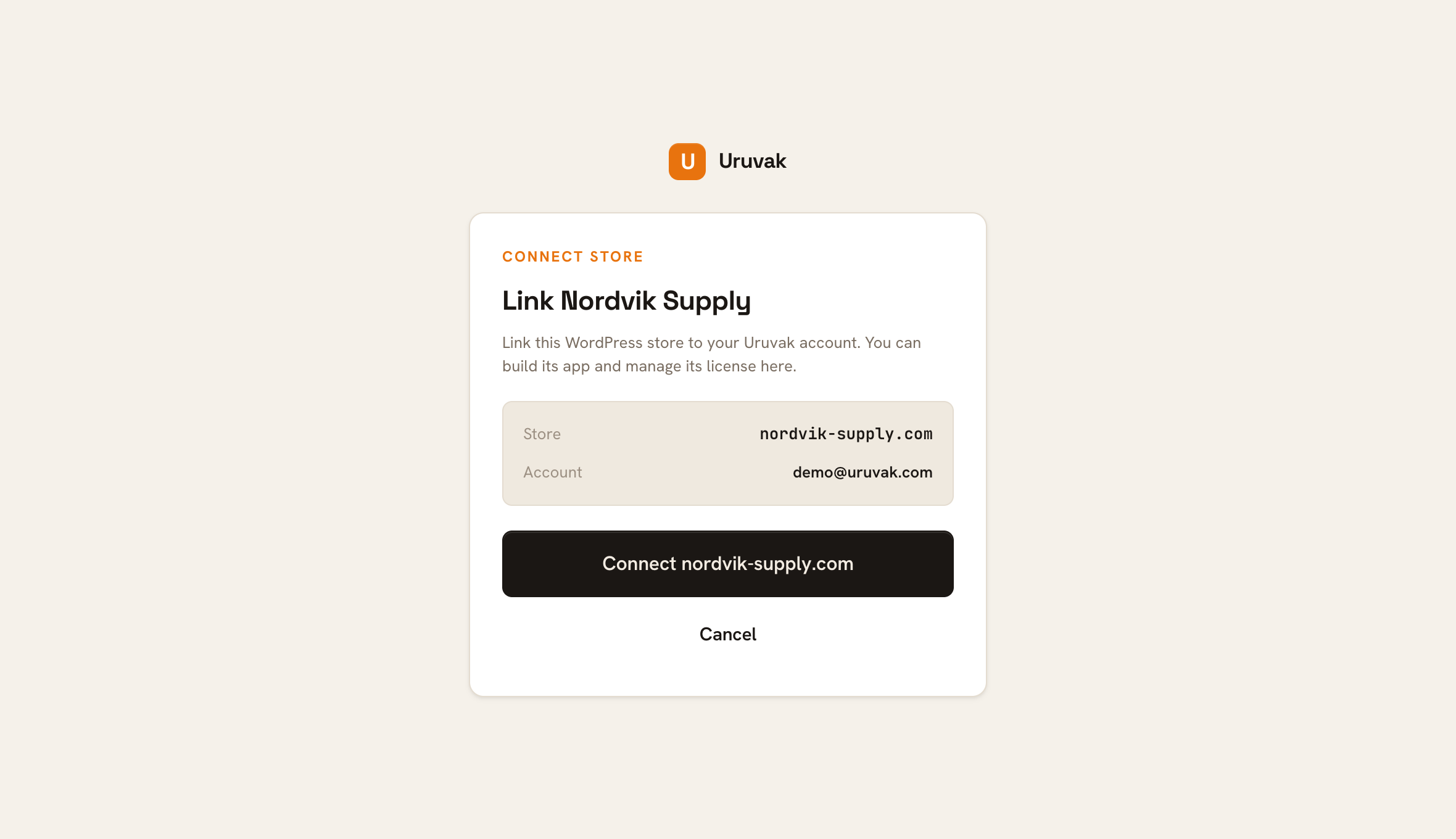
The card is titled Link followed by your shop's name, and lists two things: Store — your domain, and Account — the Uruvak email you are signed in as. Check both, then press the button at the bottom, which reads Connect followed by your domain.
The approval card. Uruvak knows your domain already — it came from WordPress, not from anything you typed. Wait to be sent back to WordPress
The button says Connecting… for a moment and then your browser returns to wp-admin on its own. Do not press Back, do not reload, and do not open a second tab to try again — see the errors below if you do.
Confirm the green notice
The Uruvak Bridge screen now shows a green Store connected. bar, the status card flips to a green Connected pill with a Disconnect button, and the top-right button becomes Open Uruvak Builder →.
A finished link. Signing key (HMAC) must show a tick — without it, publishing to this store is blocked. Read the five rows underneath. Store is your address, App ID is your store's identifier inside Uruvak, Connected is the date and time, API is always
https://api.uruvak.com, and Signing key (HMAC) must begin with a tick. If that last row instead reads not set, the link is half-made — go to When the connection breaks.Open your dashboard
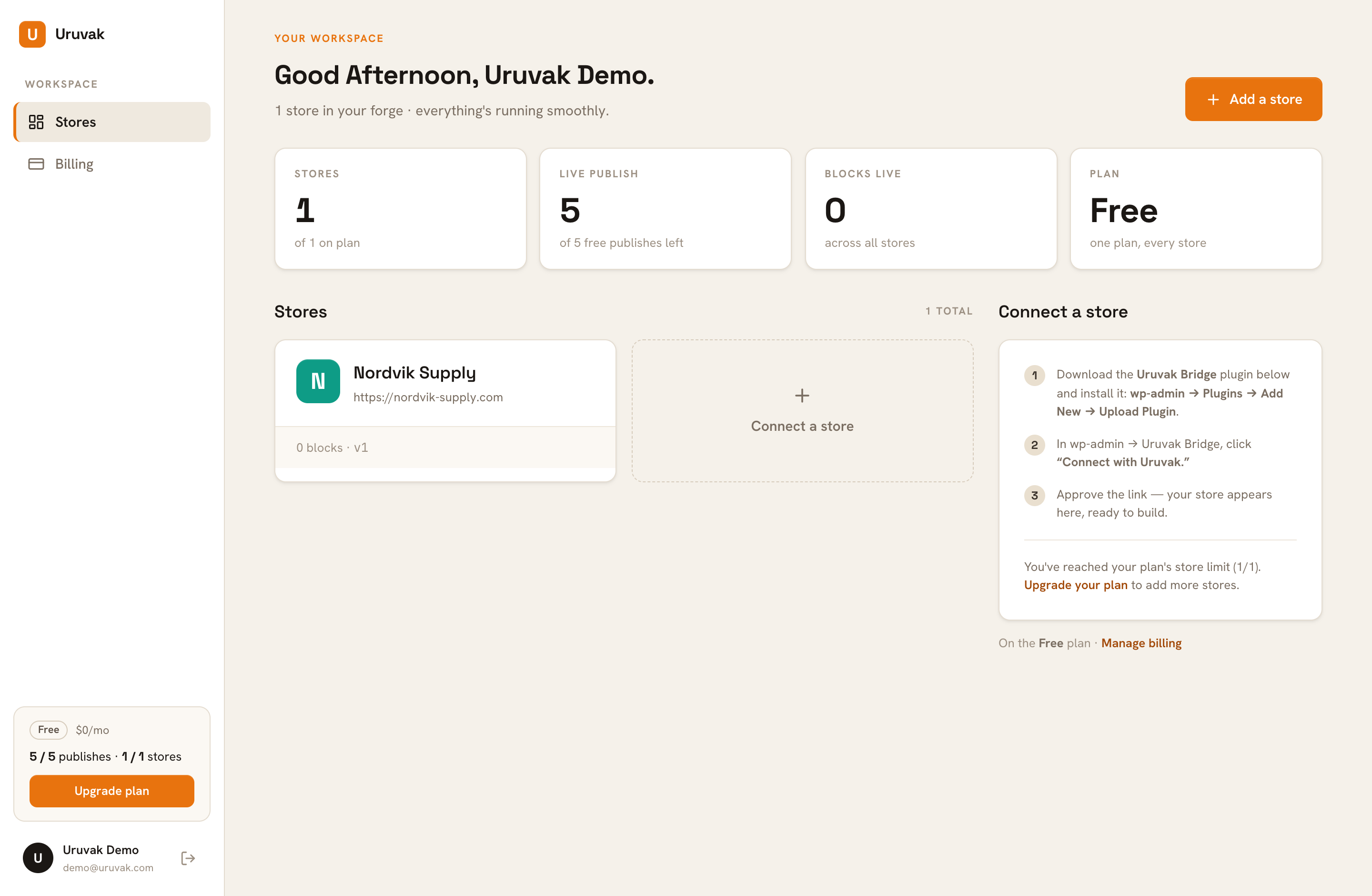
Go to app.uruvak.com. Your shop is now a tile under Stores, showing its name, its address, and how many blocks and which version it is on. The Stores counter at the top has gone up by one. Click the tile to open the Studio.
One connected store. The dashed tile beside it is not a form — it points back at the plugin.
What Uruvak took from your shop#
Your app is named after your WordPress site title, cut to 30 characters, and its logo comes from your WordPress site icon if you have one set. Both are only starting points: rename the app or change its icon whenever you like, and reconnecting later will never overwrite your choices. See App name, icon and package name.
If your shop name contains an apostrophe or an ampersand, it can arrive looking odd — Nora's Supply instead of Nora's Supply. Nothing is broken; just retype the app name in the store's settings.
Nothing else is copied. Uruvak reads your products live from your shop every time a shopper opens the app, so you keep managing your catalog, prices and stock entirely in WooCommerce.
When it does not work#
| What you see | What happened, and what to do |
|---|---|
| Could not connect. Connection state mismatch — please try again. | You pressed Back, reloaded the return page, or started the connection in two tabs. The security value WordPress created is used once and then thrown away. Just press Connect with Uruvak → again. |
| Could not connect. Invalid or expired connect code | More than five minutes passed between approving and arriving back in WordPress. Start again and do not leave the tab sitting. |
| Could not connect. followed by a connection error from your server | Your WordPress server could not reach Uruvak. The last step is made by your web server, not your browser, so a host that blocks outgoing connections stops it. Ask your host to allow outgoing HTTPS to api.uruvak.com. |
| You approve, land back in wp-admin, and nothing at all has changed — no green bar, no error | You were not signed in to that WordPress site as an administrator in this browser. Sign in to wp-admin first, then start again from the Uruvak Bridge screen. |
| No store provided on app.uruvak.com/connect | You opened that page directly. It only works when the plugin sends you there. Go back to wp-admin and use the button. |
| Store limit reached (1/1). Upgrade your plan to add more stores. on the approval card | Your plan is full. free and launch each allow one store, agency allows five. See Plans and limits. |
Connecting the same shop again#
Reconnecting is safe and free. Uruvak treats http and https, www and no www, and a trailing slash as the same shop, so running the flow again reuses your existing store rather than making a second one — and it does not use another store slot. Your design, your published version and your releases all stay exactly where they were.
Two things are genuinely different shops as far as Uruvak is concerned: a shop that moves to a new domain, and a shop installed in a subfolder that moves. Either one connects as a brand-new store and takes another slot on your plan.
A shop can also only be linked to one Uruvak store at a time. If a colleague connects the same shop from their own Uruvak account, WordPress points at theirs and yours starts failing its connection check.
With a green Connected chip, you are ready to design. The Studio is where your app is built, block by block — or take the short route with the Quickstart.