Every block, and what it does
A reference for all 24 blocks in the Studio — what each one puts in front of a shopper, which pages it is allowed on, and which of its settings actually change something.
Your app's pages are stacks of blocks. You add them in the Studio's left rail, edit them on the right, and watch the phone in the middle redraw. There are four pages — Home, Category, Product and Cart — and each one accepts a different set of blocks, so the palette you see on Home is not the palette you see on Category. Skim the table, then read the section for the block you are about to add.
How a block gets onto a page#
Pick the page first
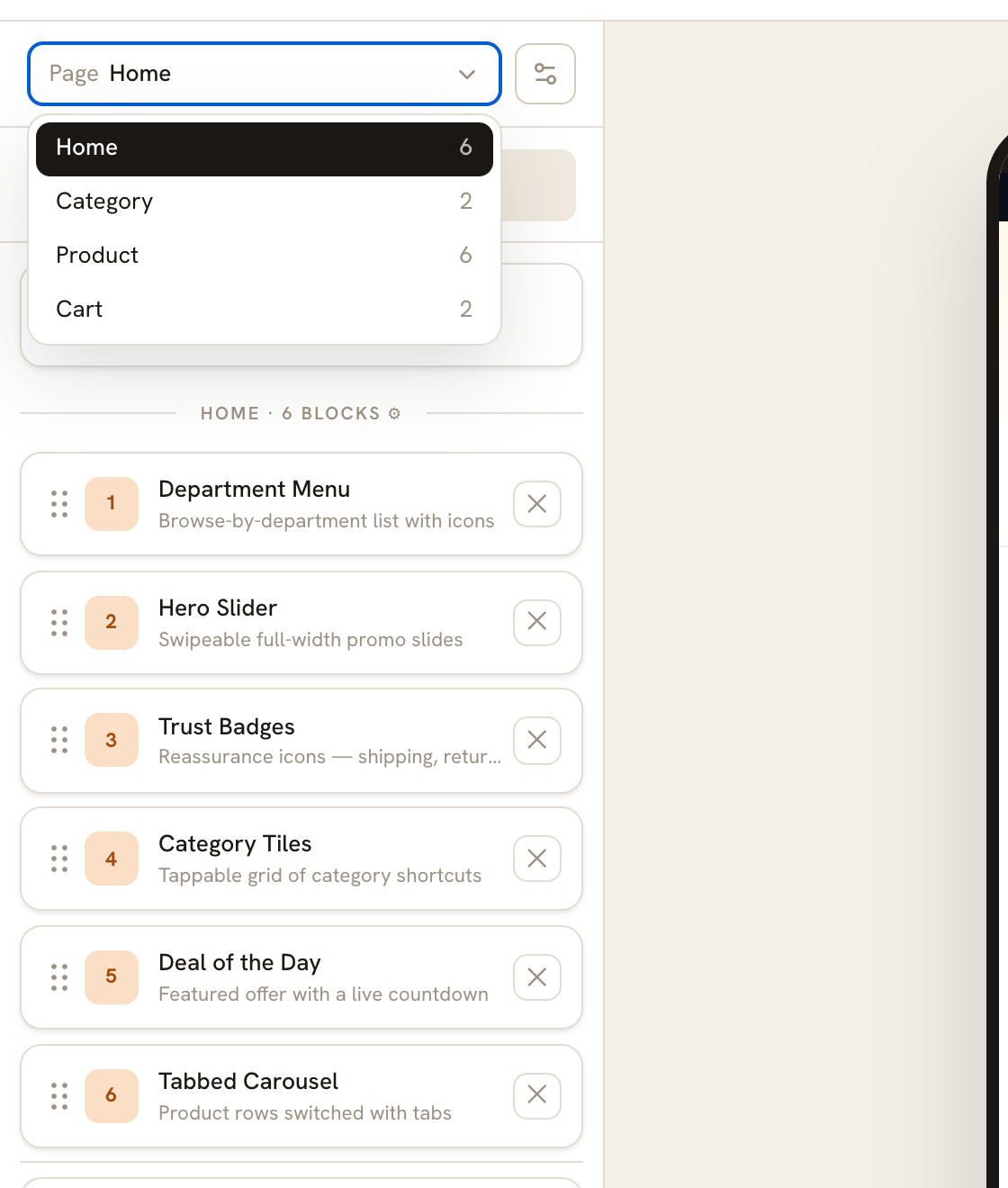
The Page dropdown at the top of the left rail switches between Home, Category, Product and Cart, with each page's block count on the right. Every page keeps its own list. Switching pages clears whatever you had selected.
Click Add block
Add block at the bottom of the rail opens the palette. It starts with "Blocks for the home page" and then groups the blocks into Navigation, Merchandising, Product Detail and Listing. Only the groups that have blocks for this page appear — on the Product page you only ever see Product Detail.
Drag it up to where you want it
A new block always lands at the bottom of the page. You cannot drop a palette item at a chosen position. To move it, drag the six-dot grip at the far left of its row — only the grip is draggable, dragging the block's name does nothing, and there is no keyboard way to reorder.
Edit it on the right
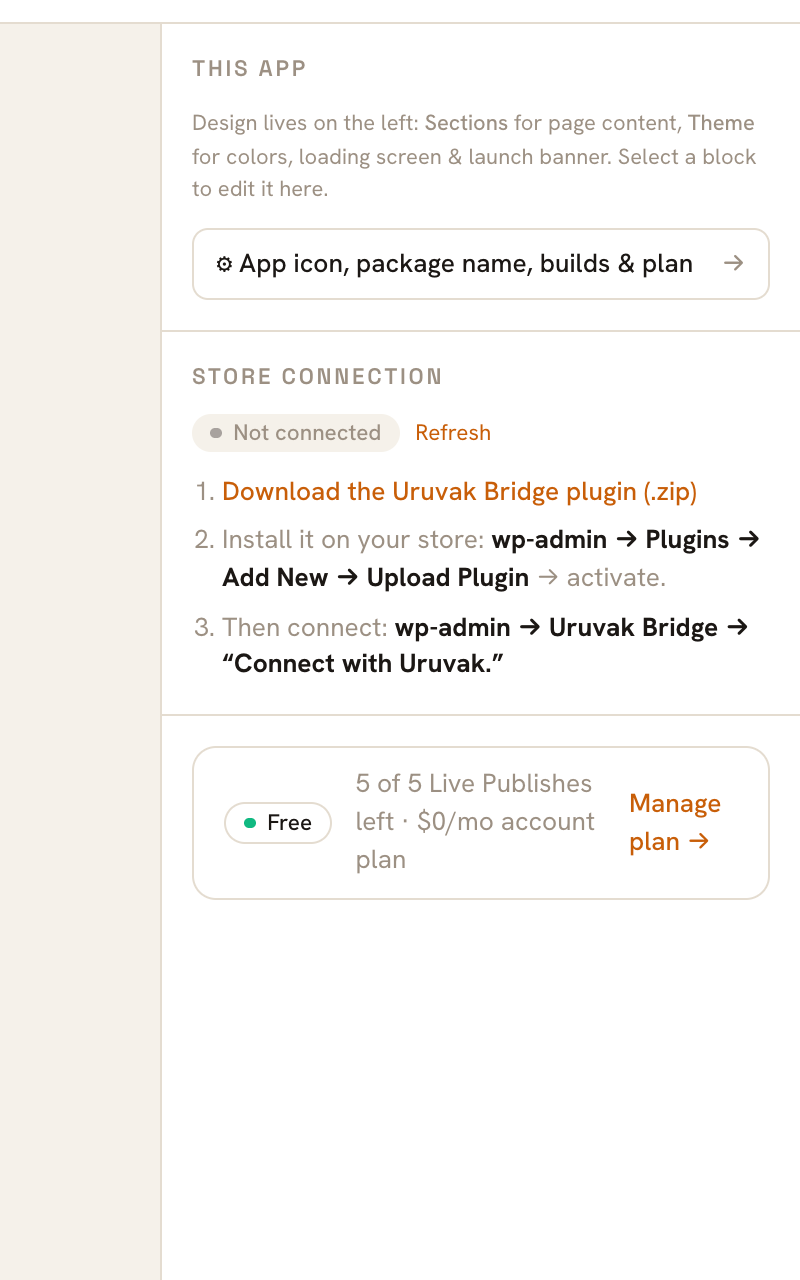
Clicking a block's row opens it in the right rail under the heading "Block settings", with the block's name and its one-line description at the top. Everything below that is this page's subject.
Nothing you do here reaches a shopper until you publish. The draft saves itself about a second after your last edit and the top bar reads "Draft saved"; your app changes when you press Publish Live. See Publish live.
Every block at a glance#
| Block | Group | Pages it is allowed on | What you can edit |
|---|---|---|---|
| Department Menu | Navigation | Home, Category | Title, Show icons, the department list |
| Hero Slider | Merchandising | Home | Autoplay, Interval (ms), the slides |
| Category Tiles | Merchandising | Home | Title, Columns, Categories |
| Promo Banners | Merchandising | Home, Cart | The banner list (1–3) |
| Deal of the Day | Merchandising | Home | Title, Source, Show stock bar, Ends at, Pinned product |
| Tabbed Carousel | Merchandising | Home | Limit, the tab list |
| Product Carousel | Merchandising | Home, Cart | Title, Source, Limit, Category |
| Category Showcase | Merchandising | Home | Title, Limit, Category |
| Product Grid | Merchandising | Home, Category | Title, Source, Columns, Limit, Category |
| Brand Carousel | Merchandising | Home | Title, and nothing else |
| Image Banner | Merchandising | Home, Cart | Image URL |
| Countdown Timer | Merchandising | Home | Label, Ends at |
| Trust Badges | Merchandising | Home, Cart | The badge list (1–4) |
| Newsletter Signup | Merchandising | Home, Cart | Title, Placeholder |
| Product Gallery | Product Detail | Product | Nothing |
| Product Summary | Product Detail | Product | Nothing |
| Frequently Bought | Product Detail | Product, Cart | Nothing |
| Specifications | Product Detail | Product | Nothing |
| Product Tabs | Product Detail | Product | Nothing |
| Advanced Reviews | Product Detail | Product | Nothing |
| Related Products | Product Detail | Product, Cart | Nothing |
| Category Header | Listing | Category | A category — which changes nothing |
| Filter & Sort | Listing | Category | Show filter button, sort options, filters, attributes |
| Product List | Listing | Category | Nothing |
Where the last column says "Nothing", the right rail shows the line "No editable settings yet." That is the whole panel. The block still works — it just has no knobs.
The header at the top of every page and the tabs at the bottom are not blocks. They sit as fixed cards above and below the list, they apply to all four pages, and they cannot be dragged or deleted. They have their own page: Bottom tabs and trust badges.
Navigation#
Department Menu#
Home, Category. A horizontal strip of your top-level WooCommerce categories, each with an icon. Tapping one opens that category.
You can edit Title (it starts as "Shop by Department"), Show icons — turn it off and the departments become plain text chips — and the department list itself: reorder with the ↑ and ↓ buttons, rename one with Label override (optional), swap its icon, remove it, or add another with + Add department.
The icon square opens a searchable icon picker: type "laptop", "cart" or "star" to find a glyph, press Auto to go back to the icon chosen from the category name, or use a picture of your own instead.
The strip also starts with an "All" chip. Tapping it only highlights it; it does not open anything.
Merchandising#
Hero Slider#
Home only. Full-width promo slides a shopper swipes through, with an optional headline and button caption over the image.
Each slide has an image, an optional Title (optional), an optional Button text (optional) and a Links to destination: No link, Product, Category, Custom URL or In-app screen (Search, Cart, Wishlist or Account). Add slides with + Add slide, reorder them with ↑ and ↓, remove one with ✕.
Three more things worth knowing before you spend time here:
- Autoplay and Interval (ms) change nothing today. Slides do not advance on their own in the preview or in your shoppers' app — they swipe.
- A slide with no link opens the app's search screen when tapped. "Wishlist" as an in-app destination lands on the Account screen, because the wishlist is not built yet.
- You cannot delete the last slide. The ✕ appears to work and the slide comes straight back, because a Hero Slider with no slides is not a valid block. Delete the whole block instead.
A new Hero Slider arrives with one grey placeholder slide titled "New slide". Replace the image before you publish.
Category Tiles#
Home only. A grid of tappable category shortcuts with the category's own picture. Title sets the heading, Columns takes 2 to 5, and Categories chooses which ones appear.
Opening the picker with nothing chosen selects every category, exactly like the Department Menu — deselect what you do not want. At least one must stay ticked. The footer counts what you have, for example "2 selected · at least one required."
If you set a title, the app draws a "View all" link beside it. Tapping that link does nothing today; the tiles themselves work.
Promo Banners#
Home, Cart. One to three banner pictures side by side. There is no Title and no layout control: the row always fits two banners across, so a third one wraps underneath.
Each banner has an image (with the 🖼 picker) and a Link URL (optional). + Add banner stops at three.
Deal of the Day#
Home only. A heading, a live countdown, and a scrolling row of products.
Title is the heading. Source decides which products appear — Featured, On sale, Top rated, New, Best sellers or Category. Ends at is the date and time the countdown runs to.
A new Deal of the Day ends on 1 January 2030, so the countdown reads as years until you set a real date. The preview always shows the same frozen digits whatever you choose; the countdown on a shopper's phone is real.
Tabbed Carousel#
Home only. One product row with tabs above it — "New in", "On sale", "Under $50" — and a different set of products behind each tab.
Each tab has a Tab label, its own Source and, when that source is Category, its own category. Limit caps how many products each tab loads, from 1 to 30. + Add tab adds one named "New tab" on Featured; the last tab cannot be removed.
Product Carousel#
Home, Cart. A horizontally scrolling row of product cards under a heading — the workhorse block.
Title is the heading, Source picks the products, and Limit caps how many load (1 to 30). The category picker underneath is labelled "Category (optional — used when source is “Category”)" and is ignored for every other source.
The builder preview always draws about six products no matter what Limit says. Your shoppers get the number you asked for.
Category Showcase#
Home only. One category given a whole section to itself, with its products underneath. Title, Limit (1 to 30) and a single-category picker. A new Category Showcase has no real category attached, so pick one before you publish.
Product Grid#
Home, Category. Products in a grid instead of a scrolling row. Title, Source, Columns (1 to 3), Limit (1 to 60), and the same optional category picker as the carousel.
On the Category page this block is the listing itself: when Source is Category, the grid loads more products as the shopper scrolls and honors whatever they picked in the filter sheet, so Limit is ignored there. A new Product Grid starts on Source "Category", so choose the category — or a different source — straight away.
Brand Carousel#
Home only. A scrolling strip of brand logos. The only setting is Title.
Image Banner#
Home, Cart. A single full-width picture.
Its only setting is Image URL, as a plain text box — this block has no 🖼 picker, so paste a complete address in one go or the field will revert (see the Hero Slider warning above). The picture is not tappable, and there is no link setting here at all.
Countdown Timer#
Home only. A colored bar with your text and a live countdown, for a sale or a launch. Label and Ends at. A new one says "Sale ends in" and counts to 2030 until you change it. As with Deal of the Day, the preview's digits are frozen and the app's are real. Leave Label empty and the app shows "Hurry, ends soon".
Trust Badges#
Home, Cart. Up to four small reassurance tiles — free shipping, easy returns, secure payment — each with an icon, a title and an optional second line.
Tap the icon square to search the icon library or upload a picture of your own. + Add badge stops at four, and the last badge cannot be removed. Emptying a badge's title deletes that badge, the same trap as the carousel tabs. There is more on wording and icons in Bottom tabs and trust badges.
Newsletter Signup#
Home, Cart. A heading, an email box and a Subscribe button. Title and Placeholder are both yours to write.
Product Detail#
Every block on the Product page has the same answer under "What you can edit": nothing. The right rail shows "No editable settings yet." for all seven. You choose which of them appear and in what order, and that is the whole of your control over the Product page today.
Product Gallery#
The product's main photo, which a shopper can pinch to zoom. Only the main image is shown — extra gallery photos from WooCommerce do not appear and there are no thumbnails.
Product Summary#
Name, price, any saving against the regular price, the star rating, the variation choices and the Add to cart button. The heart always shows and the SKU never does.
Frequently Bought#
A row headed "Frequently bought together". It is not: the block never learns which product the shopper is looking at, so it shows ordinary products from your catalog. Treat it as a second product row, or leave it out.
Specifications#
A table with the rows Brand, Model, Weight and Warranty, and a dash for every value. It does not read your products and there is nothing to configure. Leave it out until it does.
Product Tabs#
Description, Specs and Reviews tabs under the product. The Description tab shows your real product description. The Specs tab shows the fixed line "Specifications coming from your store." and the Reviews tab a fixed "4.6 · 128 reviews". Add it for the description; the other two tabs are decoration.
Advanced Reviews#
A "Customer Reviews" panel with a 4.6 score, 128 reviews and a star breakdown. Every number is fixed art — no review is ever read from your store. Do not put it on a shop where a customer might check.
Related Products#
Product, Cart. A row headed "Related products". Like Frequently Bought, it shows generic catalog products rather than anything related to the product on screen. It is a decent filler row at the bottom of a product page; it is not a recommendation.
Listing#
These three only exist on the Category page.
Category Header#
It draws nothing. The category's name and product count now come from the page's own header, and this block was kept only so older designs do not show the title twice. It has a category picker, and picking a category changes nothing. Both Category templates include it, so you will meet it — you can safely delete it.
Filter & Sort#
The ⚙ Filter and ↕ Sort buttons above the product list, and the sheets behind them.
- Show filter button hides or shows ⚙ Filter, leaving sort on its own.
- Sort options — tick any of Popularity, Rating, Price: low to high, Price: high to low, Newest. What you tick is exactly what the sort sheet offers.
- Filters — Price range, Brands, Rating, On sale, In stock.
- Product attributes — add a WooCommerce attribute by its slug, for example
colororsize, and it becomes a filter of its own. The slug must match the one in WooCommerce exactly, or the filter shows up empty.
Product List#
A vertical list with more detail per row than the grid. No settings: the number of columns and the grid-or-list default exist in the design but are not exposed in the builder.
What the preview will not tell you#
The phone in the middle of the Studio is a re-creation, not your real app, and a handful of settings behave differently in each. This is the short list worth memorizing.
| Setting | In the builder preview | On a shopper's phone |
|---|---|---|
| Hero Slider — Autoplay, Interval (ms) | Only the first slide, never moves | Never advances on its own; shoppers swipe |
| Deal of the Day, Countdown Timer — Ends at | A frozen countdown | Counts down for real |
| Deal of the Day — Show stock bar | Draws "62% claimed — selling fast" | No stock bar at all |
| Deal of the Day — Pinned product | Ignored | Ignored |
| Limit, on any product block | Ignored — about six products | Honored (except a Product Grid on Category) |
| Newsletter Signup — Placeholder | Ignored — an empty box | Your text |
| Promo Banners — Link URL | Not tappable | Not tappable |
Two more differences that are not settings: the preview only shows real products once your store is connected and answering — the chip above the phone reads "● live store data" when it is, and "○ sample (store offline)" when your store did not answer — and tapping a product card inside the preview does not open a product, it switches the builder to the Product page you are designing.
When a block does not do what you expected#
The field snapped back to its old value. Uruvak validates every edit and drops anything invalid without a message. It is nearly always a web address typed instead of pasted, or a number below the minimum: Interval (ms) starts at 2000, Columns is 2 to 5 on Category Tiles and 1 to 3 on Product Grid, Limit is 1 to 30 on carousels and 1 to 60 on the grid.
The block I want is not in the palette. It is not allowed on that page. Hero Slider, Category Tiles, Deal of the Day and the rest of the merchandising set are Home-only; Filter & Sort and Product List are Category-only; the Product Detail blocks are Product-only. Check the table above, then check which page the Page dropdown is on.
The pickers are empty. "No categories found. Connect your store to load its catalog.", "No products found. Connect your store to load its catalog." and "No images found. Upload images in WordPress → Media, or paste a URL below." all mean the same thing: Uruvak cannot reach your store right now. Start at When the connection breaks.
The page is empty and there is no block list. Either the left rail is switched to Theme — the segmented control at the top toggles between Sections and Theme, and Theme hides the outline along with Add block — or the page really is empty and reads "No blocks yet." with a ⊞ Start from a template button under it.
I applied a template and lost my work. Templates replace, they never merge. A single-page template replaces that page; a full app template replaces all four pages plus the header, the bottom tabs and your colors, even though the warning only names three pages. See Start from a template.
My shoppers still see the old design. Blocks live in a draft until you publish. The top bar reads "Draft saved"; the change reaches phones after Publish Live, and only once your app has had its first release. See Publish live and Take a release.
When the blocks are in the right order, the next thing to get right is how they look: colors, fonts and the five themes are in Colors, fonts and theme.