Push notifications
Set up your own free Firebase project, take the release that lets phones register, then send order updates and promo pushes from Settings › Notifications.
Push runs on your own free Firebase project, not on Uruvak's. You create that project once, upload two files from it, and Uruvak sends on your behalf from then on. Everything lives in one place — your store, then Settings › Notifications. Setting up Firebase takes about five minutes. Getting the first push onto a real phone takes longer, because it needs a new release and a Google Play review.
Before you start#
Three things have to be true first, and one of them cannot be changed later.
Your store must be connected. Order updates arrive from your WooCommerce site, and the Category, Product and Gallery pickers in the composer read your live catalog and media. With no connection, order pushes are refused before they reach you and the pickers show "No categories found. Connect your store to load its catalog." See connect your store.
Your package name must be the one you intend to keep. Firebase is tied to it, and so is your app in Google Play.
You must be able to take a release. Uploading the files is not enough on its own; see Take a new release below.
Set up Firebase#
Open your store, click Settings in the top bar, then 🔔 Notifications in the left column. Until both files are uploaded, this whole area is one dashed card with six numbered steps. There is no switch, no composer and no history on the page yet — they appear underneath only when both uploads are done.
Open the Firebase console
Step 1 of the card links to console.firebase.google.com. Sign in with any Google account — it does not have to be the address you use for Uruvak, and Firebase costs nothing for this. Keep the Uruvak tab open in another window; you will copy two values out of it.
Create a project
Click Create a project, or open one you already have. Any name works — your store's name is fine. When Firebase offers Google Analytics, turn it off: Uruvak does not use it and it adds two more screens. Wait for the project to finish being created, then continue into it.
Add an Android app with your exact package name
On the project's home screen click the Android icon, or Add app → Android.
In the field marked "Android package name", paste the package name from the first chip in the Uruvak card. Press Copy there — it flips to "✓ Copied" for a second and a half — then paste. Do not type it by hand. One wrong character and the upload in step 5 is refused with "This file has no client for this app's package name (com.uruvak.yourstore) — it covers …".
An app nickname is optional. Leave it or name it after your store.
Paste the signing fingerprint, then register the app
The second chip in the Uruvak card is a fingerprint. Copy it into "Debug signing certificate SHA-1", just below the package name field.
Push works without it. Sign in with Google inside your app does not. If you skip it, the Firebase row in Uruvak will later show a hint telling you to add the fingerprint in Firebase, re-download the file and press Replace — so it is much less work to paste it now. See Google sign-in for shoppers.
Then click Register app.
Download google-services.json and upload it to Uruvak
Firebase now offers Download google-services.json. Download it, go back to the Uruvak tab and press Upload google-services.json, then pick that file.
Then stop. As the card says: "Skip the remaining Firebase steps ("Next… Continue to console")." Those remaining screens are instructions for a developer adding Firebase to source code. Uruvak does that part for you.
Three things are checked before the file is accepted: it has to be under 20,000 bytes, it has to actually be a
google-services.jsonwith Android entries in it, and one of those entries has to be your exact package name. When it lands, the button becomes "✓ google-services.json uploaded" with a small Replace link next to it.Generate a service-account key and upload that too
Back in Firebase, open ⚙ Project settings → Service accounts and click Generate new private key. Confirm, and a second
.jsonfile downloads. Upload it in Uruvak with Upload service-account key.This second file must come from the same Firebase project as the first one. If it does not, Uruvak refuses it: "This key belongs to Firebase project "a", but your google-services.json is from "b". Generate the key in that same project (Project settings → Service accounts)."
The card explains where this one lives: "This key lets Uruvak deliver notifications on your behalf. It stays on our servers and is never shipped inside your app or shown again after upload." Treat the downloaded copy like a password — delete it from your Downloads folder once it is uploaded. You can always generate a fresh one in Firebase.
When both files are stored, the dashed card disappears and two status rows take its place.
Each row has Replace and a small Remove. Removing either file puts the six-step card straight back and hides the switch, the composer and the history until you upload again — and the next release you take will ship with no push at all. Removing the service-account key cannot be undone from here, because the key is never shown again; you would generate a new one in Firebase.
Take a new release, or nothing will happen#
This is the step people miss, and missing it is the number one reason push silently does nothing.
google-services.json is baked inside your app when the app is built. A phone can only sign up to receive your notifications if the copy of your app it is running already contains that file. Uploading the file to Uruvak does not reach a single phone that already has your app installed.
Open Settings › Releases
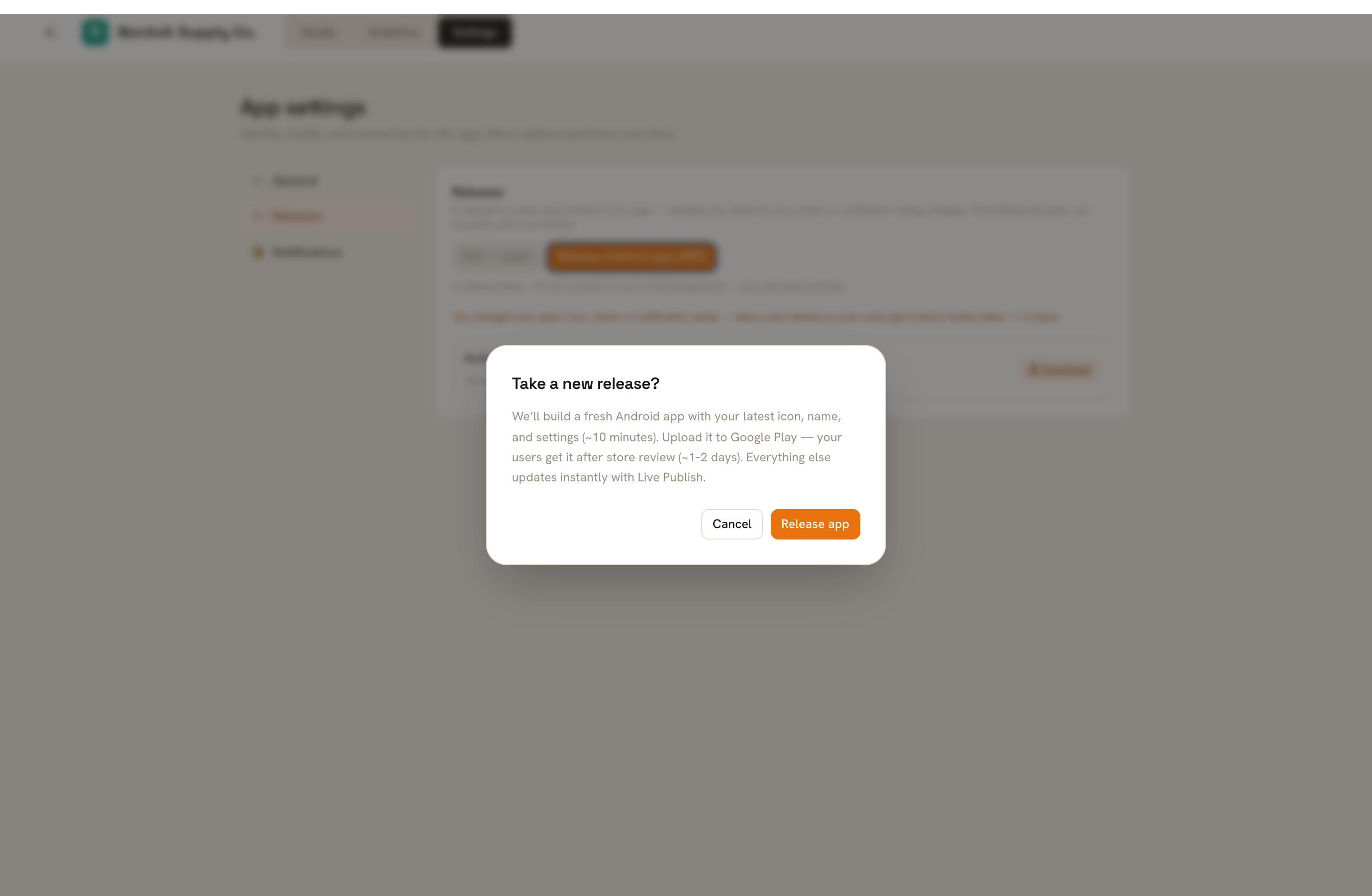
The sidebar item is called ▤ Releases. (The setup card's own closing line says "Settings → Builds" — same place, older wording.) Press Release Android app (APK) and confirm. If that button is greyed out with "Nothing changed that needs a release. Publish live instead — it's instant.", your
google-services.jsondid not actually save to this app — go back and check the Notifications section.Wait about ten minutes
"A release takes ~10 min to build. It runs in the background — you can keep working." The row's badge moves from Queued to Building to Ready, and then a ⬇ Download button appears.
Upload the APK to Google Play yourself
Uruvak does not submit anything to any app store. You download the APK and upload it to your own Google Play account. Google's review usually takes one to two days. The full walkthrough is in get your app onto Google Play.
Install that build and open it once
Registration happens the first time the new build is opened, after the phone's own permission prompt is accepted. A shopper who never updates the app stays unreachable.
If this is also your first ever release, it unlocks Publish live at the same time.
Turn on order updates#
Under Automatic notifications there is exactly one row: Order updates, described as "Automatically notify a customer when their order is confirmed, shipped, or delivered." It is off for every new app. Switch it on — it saves by itself, and if the save fails the switch flips back and a red line appears underneath.
Who actually receives these matters more than the switch does. Order updates only reach a shopper who was signed in to your app when the order was placed. Guest checkouts are dropped in WordPress before they ever reach Uruvak, and an order with no signed-in customer is skipped again on Uruvak's side. Someone who bought from your website in a browser, or who never signed into the app, gets nothing.
Here is the exact wording a shopper sees, for order 1042:
| WooCommerce status | Title | Message |
|---|---|---|
| processing | Payment confirmed 🎉 | Order #1042 is confirmed and being prepared. |
| on-hold | Order on hold | Order #1042 is on hold — we'll update you soon. |
| completed | Order complete ✅ | Order #1042 is complete. Thanks for shopping with us! |
| cancelled | Order cancelled | Order #1042 has been cancelled. |
| refunded | Refund issued | Order #1042 has been refunded. |
| failed | Payment failed | Payment for order #1042 didn't go through. |
| shipped | Your order shipped 🚚 | Order #1042 is on its way! |
| delivered | Order delivered 📦 | Order #1042 has been delivered. Enjoy! |
| anything else | Order update | Order #1042 is now awaiting pickup. |
You cannot edit this wording. Tapping any of them opens the orders screen inside your app.
Four statuses never notify, whatever the switch says: pending, checkout-draft, auto-draft and trash. Those are half-finished and binned orders, and a customer should not hear about them. Every other status does notify — including custom ones from your own plugins, using that last generic line. If your shop uses a status named awaiting_pickup, your customer gets "Order #1042 is now awaiting pickup."
Send a promo push#
Write it
Title holds up to 120 characters and Message up to 500, with a live counter on each. Both are hard limits. Lock screens truncate long text long before those numbers, so watch the preview rather than the counter.
Add an image, if you want one
Paste a URL into Image (optional), or press Gallery to pick one from your store's WordPress media library ("Choose an image · store media"). The image appears as a large banner under the text on Android. Two things to know: an address that is not a proper web address is only rejected at the moment you press send, and an address that is real but points at nothing is never flagged at all — the image simply vanishes from the preview and from the notification.
Choose what tapping it opens
Opens on tap (optional) gives you five chips: None, Home, Category, Product and Custom URL. Home, Category and Product open that screen inside your app. A custom URL opens the phone's browser instead, which takes the shopper out of the app — use it sparingly. Category and Product load your connected store's live catalog, with a search box.
Send it
Send notification stays greyed out until the title is filled, the message is filled, and the destination is complete — meaning you actually picked a category or product, or typed a URL starting with
http://orhttps://. Nothing on screen explains this. If the button looks broken, that is why.
The result appears next to the button: "Delivered to 412 devices." — with "· 4 failed" added when some did not go through. Failed usually just means people who uninstalled your app; those devices are dropped automatically, so your delivered number drifts down over time on its own.
Recent sends#
The table keeps your last 50 promo sends, newest first, with the time shown as "just now", "14m ago", "3h ago" and then a plain date.
Read Delivered carefully. It is the number of devices Google accepted the message for at the moment you pressed send — not the number of people who saw it, and not opens. Failed shows an em dash rather than a zero when nothing failed.
A send that reached nobody still gets a row, showing 0. Rows cannot be deleted or cleared, so early test sends stay in the list.
For anything about how people respond, go to the store's Analytics tab, where a Push notifications panel shows Prompted, Granted, Opt-in rate and Opened for the period. Those numbers come from the app itself and cannot be traced back to one particular send. See analytics.
What push cannot do yet#
This is worth reading before you plan a season around it.
| What you might expect | Today |
|---|---|
| Schedule a push for later | Not built. The composer sends the instant you press the button. |
| Campaigns, sequences, automations | Not built. The one automation that exists is the Order updates switch. |
| Abandoned-cart, back-in-stock or price-drop pushes | Not built, despite being mentioned on our own pricing page. |
| Send to a segment, or to one customer | Not built. Every promo push goes to every device. |
| Send a test to your own phone first | Not built. Install your own app and use the on-screen preview. |
| iPhone notifications | Not possible — there is no iOS app to build yet. |
| See who opened which push | Not built. Analytics shows opens in total only. |
| Delete a row from Recent sends | Not built. |
Push itself is not part of your plan. Both uploads, the order-updates switch and the composer work on free, and no limit is applied to how many you send — if you have seen "Order-status push (capped)" in the Free plan's feature list, no such cap exists in the product. What your plan does limit is how often you can publish design changes; see plans and limits.
When push does nothing#
"Sent — but no devices are registered yet." No phone is running a build that contains your google-services.json. Take a release, get it through Google Play, and install that build. This is by far the most common cause.
"Delivered to 0 devices · 214 failed" — devices exist, but Uruvak could not deliver to them. Check that the Service-account key row still says "✓ uploaded". If you removed it, or replaced it with a key from a different Firebase project, every send fails. Upload a key generated in the same project as your google-services.json.
A red line reading "This file doesn't cover the current package name (…) — builds will skip push until you upload a matching one." Your package name changed after you uploaded. Add an Android app with the new package name in Firebase, download google-services.json again, press Replace, and take a new release.
The six-step setup card came back on its own. Either a file really was removed, or the page failed to check the key. Reload first. If the card is still there, re-upload the missing file — then take a release before expecting anything to send.
Send notification will not light up. One of three things is empty: the title, the message, or the destination. Picking the Category or Product chip without then choosing one from the list counts as incomplete, and so does a custom URL that does not start with http:// or https://.
Order updates are on, but customers get nothing. Work down this list: the order was a guest checkout; the customer was not signed in to the app when they ordered; the customer never installed or opened a build with push in it; the status that changed was pending, checkout-draft, auto-draft or trash; the store is disconnected. One more, rare but real: if your WordPress server's clock is more than five minutes out, Uruvak rejects the order events and nothing is logged anywhere. Ask your host to check the server time. See when the connection breaks.
The Notifications section is stuck on "Loading…". The page could not fetch your app's settings and shows no error. Reload. If it persists, check the store's connection.
Once push is working, the same Firebase project you just created is also what powers Google sign-in for shoppers — if you pasted the SHA-1 fingerprint, most of that page is already done.