Create your Uruvak account
Sign up with an emailed code, learn the three ways back in, and understand why there is no password reset.
Signing up takes two steps and about a minute: your details, then a 6-digit code Uruvak emails you. The account does not exist until you type that code. Read the last two sections before you pick an email address — this is the one part of Uruvak you cannot change your mind about later.
Create your account#
Open app.uruvak.com/signup
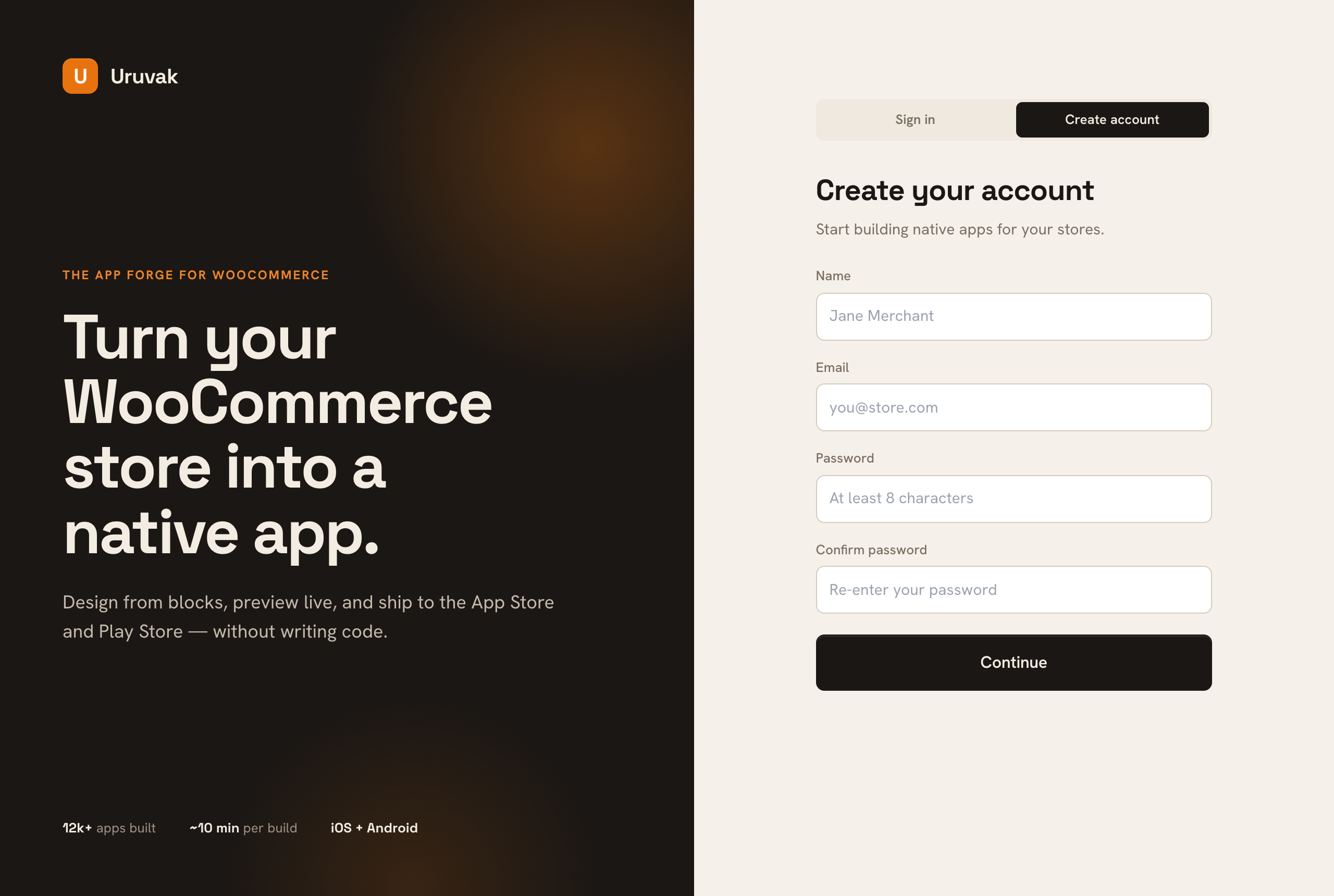
Go straight to app.uruvak.com/signup, or press Start free on uruvak.com. The same screen serves signing in and signing up; the two buttons at the top of the form switch between them, and Create account should be the one that is filled in dark.
Fill in your details
Four fields: Name, Email, Password and Confirm password. The password must be at least 8 characters. If the two passwords differ, the second field's border turns red as you type, and pressing the button shows "Passwords don't match" without sending anything.
Step one. Nothing is saved yet — pressing Continue only asks Uruvak to email you a code. Press Continue
This does not create your account. It checks the email is not already in use and sends a 6-digit code to it. If you already have an account you will see "An account with that email already exists" — switch to Sign in instead.
Get the code out of your email
The mail comes from Uruvak <no-reply@uruvak.com> with the subject "Confirm your Uruvak email". It is a plain message with six large digits in it and no branding at all, so check spam and promotions if it is not in your inbox within a minute. The code is good for 10 minutes.
Type the code and press Create account
Type the six digits into 6-digit code and press Create account — the button changes name at this step, so do not go hunting for Continue. Your account is created, you are signed in, and you land on your workspace.
Step two. Resend code sends a fresh code; Edit details takes you back to the four fields.
If the code does not work#
Two more limits worth knowing before you start clicking Resend code:
- There is a 60-second gap between codes. Too soon and you get "Please wait 47s before requesting another code." — the number counts down, so just wait it out.
- There is a cap of 5 codes per email address per hour, after which you get "Too many codes requested. Please try again later." Signing up and signing in are counted separately.
The upgrade popup#
The first thing you see after signing in is a popup offering the Launch plan. It appears once per sign-in while your account is on Free, and it charges nothing by itself.
Two small things that catch people out here: picking Monthly in this popup does not carry over — the Billing page always opens on the yearly view, and you switch it there. And if you arrived from a paid plan button on uruvak.com's pricing table, you are still on Free; the plan is chosen on the Billing page, not at signup.
Signing back in#
Your session lasts 30 days in the browser you signed in with. After that, or on any other device, you sign in again. There are three ways.
With your password#
Email and password on the Sign in tab.
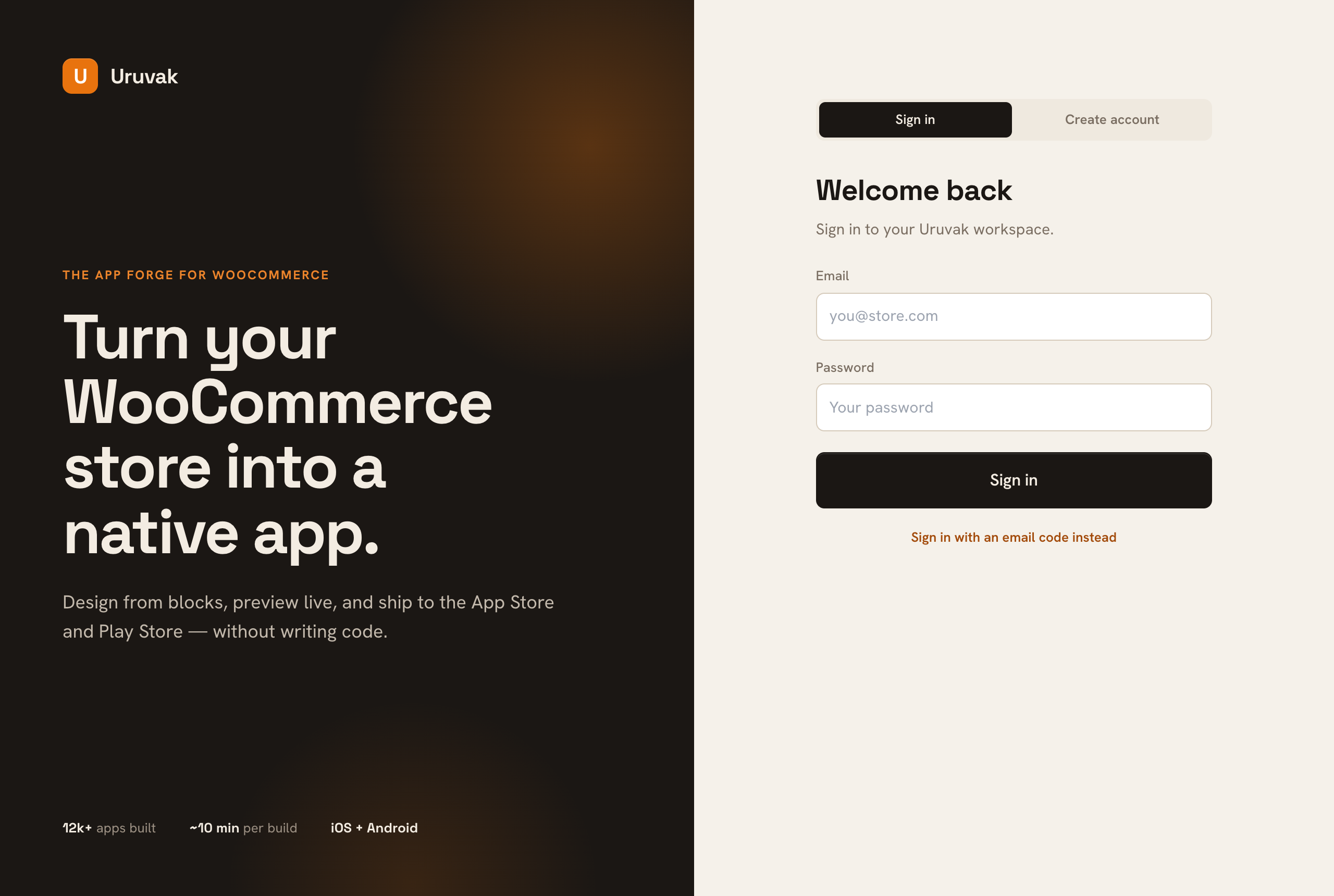
A wrong password and an email with no account both give the same message — "Invalid email or password" — so it does not tell you which one is wrong. If you know the address is right, use the email code instead: it will tell you plainly whether an account exists.
With an emailed code#
Press Sign in with an email code instead, type your address, and press Email me a code. Uruvak emails a 6-digit code with the subject "Your Uruvak sign-in code", the same 10-minute rules apply, and you finish with Sign in.
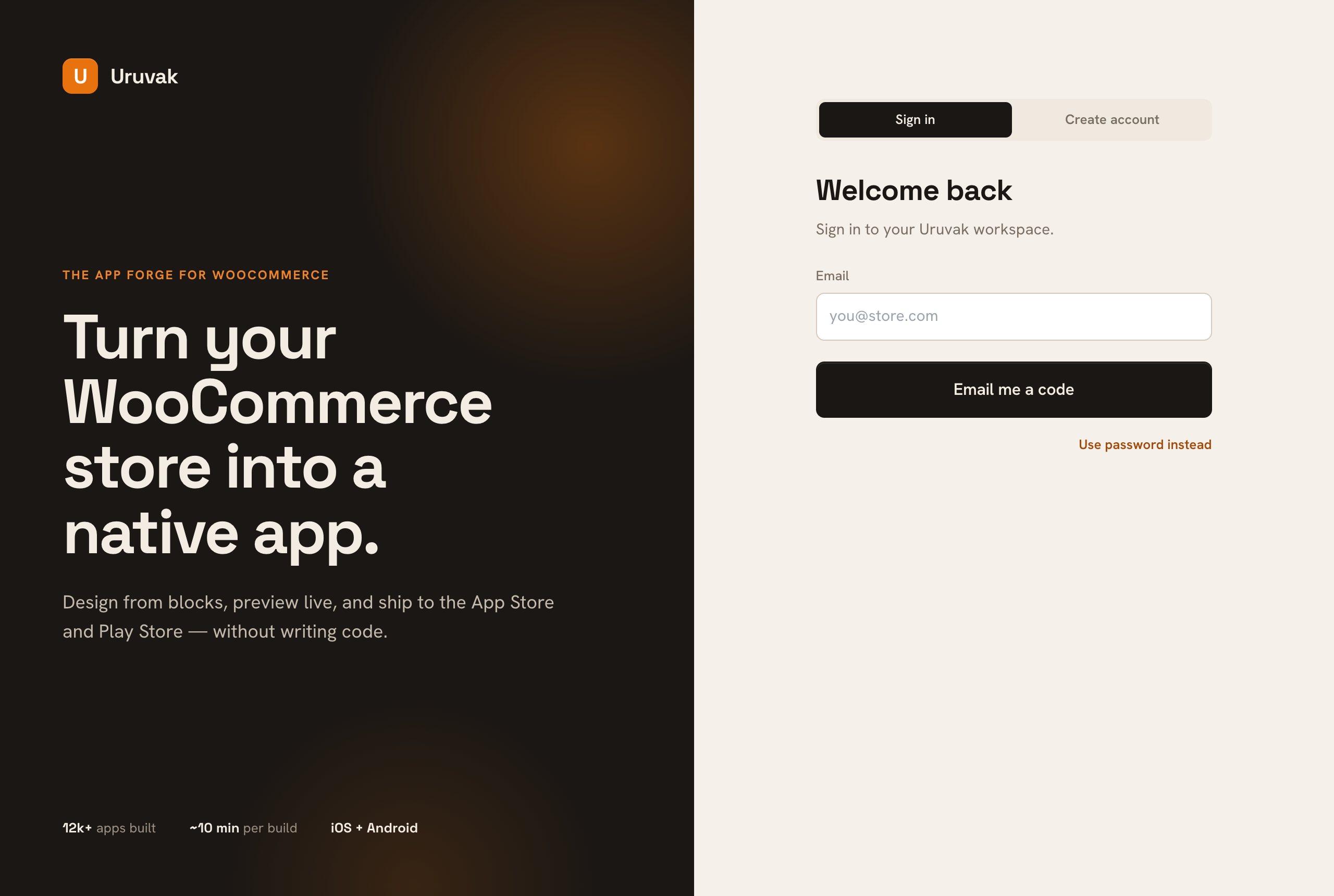
"No Uruvak account uses that email" means exactly what it says: nothing was ever created with that address. The usual cause is a signup that stopped at the code step.
With Google#
Under the divider marked "or" sits Google's own sign-in button. It is drawn by Google, not by Uruvak, so its exact wording can differ by language.
- Signing in with Google using an address that already has a Uruvak account signs you into that same account and workspace. It does not create a second one.
- An account first created through Google has no password, ever. Using the password form on it returns "This account signs in with Google or an email code", and there is no way to add a password later. Google or the email code are your two routes in.
- If you cannot see the button at all, Google sign-in is not switched on for this deployment. Use email and password, or the email code.
There is no password reset#
What you cannot change later#
Uruvak has no profile or account settings screen. Once the account exists:
- Your name, email address and password cannot be edited.
- Your account cannot be deleted from the dashboard.
- Signing out clears the current browser only. There is no "sign out of all devices", and a session on another machine stays valid for its 30 days.
Your plan, your billing details and your stores are all changeable — it is only the person-level details that are fixed. If you truly need a different email address, the practical answer today is a new account, and reconnecting your store to it from wp-admin.
Signing out#
The Sign out control is the small icon at the bottom of the left sidebar, beside your name and email. It has no label until you hover it, and there is no confirmation step — one click and you are on the sign-in screen. Signing out never affects your published app, which keeps running exactly as it was.
Error messages on this screen#
| What you see | What it means |
|---|---|
| An account with that email already exists | You already signed up. Use Sign in. |
| Passwords don't match | The two password fields differ. Nothing was sent. |
| That code is invalid or has expired | Wrong, older than 10 minutes, already used, five failed tries, or superseded by a newer code. |
| Please wait 47s before requesting another code. | Codes are 60 seconds apart. The number counts down. |
| Too many codes requested. Please try again later. | Five codes for that address in an hour. Wait, then try again. |
| Validation failed | Something did not fit the rules — nearly always a password under 8 characters or a code with fewer than 6 digits. |
| Invalid email or password | Either the password is wrong or no account uses that address. |
| This account signs in with Google or an email code | The account has no password. Use Google or the email code. |
| No Uruvak account uses that email | No account exists for that address. Create one. |
| Could not verify the Google sign-in token | Google sign-in is misconfigured for this deployment. Use the email code. |
A raw browser message such as "Failed to fetch" means the page could not reach Uruvak at all — check your own connection first. Error messages, decoded covers the rest of the product.
With an account in hand, the next job is on your store: Install the Uruvak Bridge plugin.