Analytics
Read what shoppers actually do inside your app — what they open, what they search for and can't find, which blocks they tap, and where they give up before ordering.
Open a store and pick the Analytics tab, between Studio and Settings. Everything on this screen is measured inside your app, by your app — it is not a second opinion on your WooCommerce reports. Pick a window with the 7d, 30d and 90d buttons at the top right; 30 days is what you get on arrival. There is nothing else to set up and nothing to configure.
The five numbers#
| Number | What it counts |
|---|---|
| Installs | First launches — a phone opening your app for the first time. Someone who deletes it and installs it again counts twice. |
| Active users | People who did anything at all in the app during the window. |
| Sessions | Separate visits. One person opening the app three times in a week is three sessions. |
| Orders | Checkouts completed inside the app during the window. |
| Conversion | Of the shoppers who opened a product page, the share who placed an order. |
Conversion is the one people misread. It is not orders divided by sessions and not orders divided by visitors — it is buyers divided by product-viewers, over the whole window. A window with lots of browsing and few product pages opened will show a flattering number, so read it next to the funnel rather than on its own.
The daily chart#
Daily activity draws two lines across the window — active users in amber, sessions in teal. Move the mouse across it and a marker snaps to the nearest day with that day's exact figures.
Days on which nothing happened are drawn as zero rather than skipped, so a flat stretch at the bottom is real: nobody opened the app. Orders are not plotted on this chart; the only place to see them is the Orders card and the bottom of the funnel.
What to look for is shape, not height. A line that climbs for three days after you send a push and then returns to where it was tells you the push worked and the app did not hold anyone. Compare that against the opens count in the push panel further down.
The funnel, and where to spend your effort#
Purchase funnel counts distinct shoppers reaching each of four steps: Viewed a product, Added to cart, Started checkout, Placed an order. Between each pair of bars is the drop, as a percentage.
Read it by finding the biggest drop, because that is the only number on the page that tells you what to do tomorrow:
- Viewed a product → Added to cart. Shoppers are interested and unconvinced. Look at the product photos, the price, and how much of the description is visible before scrolling.
- Added to cart → Started checkout. Almost always a surprise at the cart: shipping cost, a minimum order, or an unclear delivery date.
- Started checkout → Placed an order. Something in checkout is failing or asking too much — a payment method that is not working on mobile, or too many required fields. Place a test order on a phone and go through it yourself.
A big drop at the first step is normal; a big drop at the last one is almost always fixable.
What shoppers wanted and could not find#
Top searches is the most directly useful panel on this page. It lists up to ten terms shoppers typed, with the number of times each was searched, and a red no results tag on any term that never returned a single product in the window.
Every one of those tagged terms is a shopper who wanted to give you money and left empty-handed. There are only three honest responses, and all of them are quick:
- You sell it, under another name. Put the word they used in the product title, or add it as a tag.
- You do not sell it, but you sell something close. Create a category or a product that catches the term.
- You do not sell it and never will. Ignore it — and stop wondering.
Two details that change how you read the list. Searches are lower-cased and trimmed before they are counted, so Shoes and shoes are the same row. And the counts are searches performed, not shoppers — one determined person hunting for the same thing five times shows as five.
Top products next to it lists up to ten products by how often their page was opened, with the number added to cart beside the ones that were. A product that shows as #4417 rather than a name is one the app reported without its title; it is still a real product, just unlabeled in this list.
Which parts of your design earn their place#
Home block performance counts taps per block type on your home screen, written the way the block is named internally — hero slider, category tiles, product carousel. Up to twelve are listed, most-tapped first.
Use it in one direction only: move what gets tapped higher up the home screen, and cut what nobody touches. Then check the next 30 days. The Studio is where you reorder, and Every block, and what it does explains what each one is.
Where shoppers spend their time#
Screen views counts up to twelve screens, using the app's own internal names rather than friendly ones:
| Name on the list | The screen it means |
|---|---|
| home | Your home screen |
| category | A category listing |
| product | A product page |
| cart | The cart |
| search | The search screen |
| checkoutDetails | The name, email and address step |
| checkout | Payment |
| account | The Account tab |
| orders | A shopper's past orders |
| addresses | Saved addresses |
The one to watch is search. If it is high in this list, shoppers are not finding things by browsing your home screen and categories — which sends you back to the block list above, and to your search terms.
Push opt-in and opens#
The last panel has four figures for the same window: Prompted, Granted, Opt-in rate and Opened. Together they answer whether push is worth your time — see Push notifications for sending.
Read them carefully, because they count events and not people:
- A shopper who reinstalls your app is prompted again, so heavy reinstalling inflates Prompted and Granted.
- Shoppers who already said yes are never prompted again, so a mature app can show a very low or even 0% Opt-in rate while push is working perfectly for everyone. A low rate on a long window is not a problem to solve.
- Opened counts notification taps in the window, across every notification. There is no per-message or per-campaign breakdown.
Before any numbers appear#
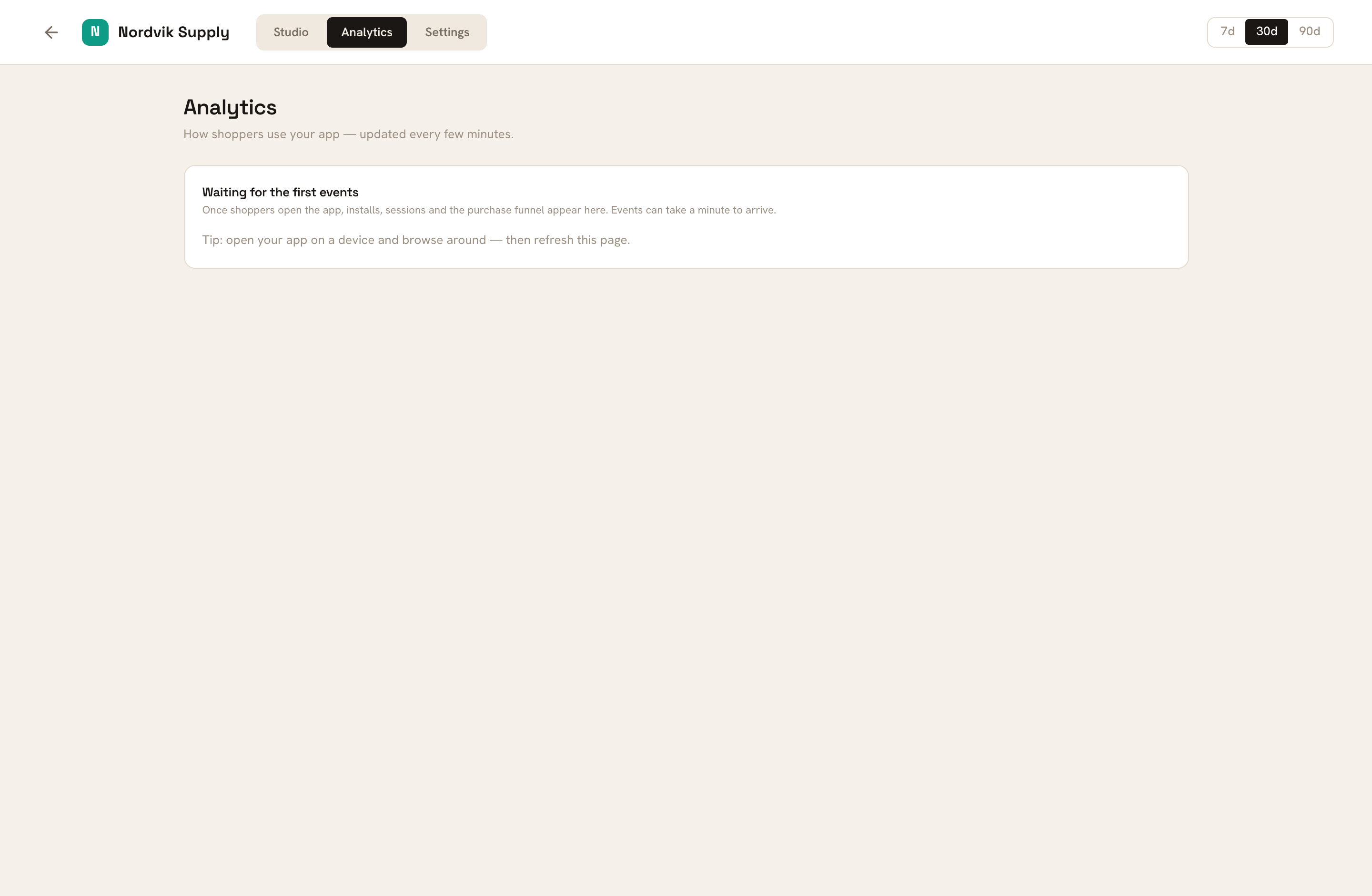
Waiting for the first events means the screen is working and nothing has arrived yet. The usual reasons, in the order they actually happen:
- Nobody has used the app yet. Numbers start when real shoppers install from Google Play and browse — see Get your app onto Google Play.
- Your app was built before measurement was switched on. What is installed on shoppers' phones is what reports; an older app never will. Take a new release, upload it to Google Play, and the numbers begin with that version's installs.
- You are refreshing too fast. The figures are recalculated about every five minutes, so the page's own tip about refreshing is optimistic: reloading within that window gives you the same numbers. Switching to a different range (7d, 30d, 90d) fetches fresh, which is the quickest way to see whether anything has moved.
Two other states you might land on:
- "Analytics isn't set up yet", with a short list mentioning server settings. This one is on Uruvak's side, not yours — there is nothing you can set. Contact Uruvak support and quote that title.
- "Couldn't load analytics", with a technical-looking line under it. That is the raw reason, passed through unchanged. There is no retry button; click a different range to make the page try again, and if it keeps failing, send us that line.
What Analytics does not do#
Analytics itself is the same screen on every plan today — the same panels, the same three windows. What your plan does change is how often you can publish and how many stores you can run, and both are in Plans and limits.